> ## Documentation Index
> Fetch the complete documentation index at: https://support.telivy.com/llms.txt
> Use this file to discover all available pages before exploring further.
# Multi-Factor Authentication
> Make Your Account More Secure
Traditional logins rely solely on passwords, which are vulnerable to hacking through data breaches, phishing scams, or even plain old forgetting. Multi-Factor Authentication (MFA) adds an extra layer of security, making unauthorized access significantly harder. Even strong passwords can be compromised. With MFA, even if someone steals your password, they'll still need that second authentication factor, such as a code from your phone, to gain access. This significantly reduces the risk of account takeovers.
With MFA enabled, sensitive information such as payment details or client data is better protected against unauthorized access. Telivy enables MFA by default for your account.
## Registering for MFA
On your first login, you will be prompted to register using an authentication app like Google Authenticator. This can be done either by scanning the QR code or entering the seed phrase.
If you are unable to scan using your authenticator app, click on "Trouble Scanning?" to see the seed phrase. Then enter this seed phrase in your authenticator app.
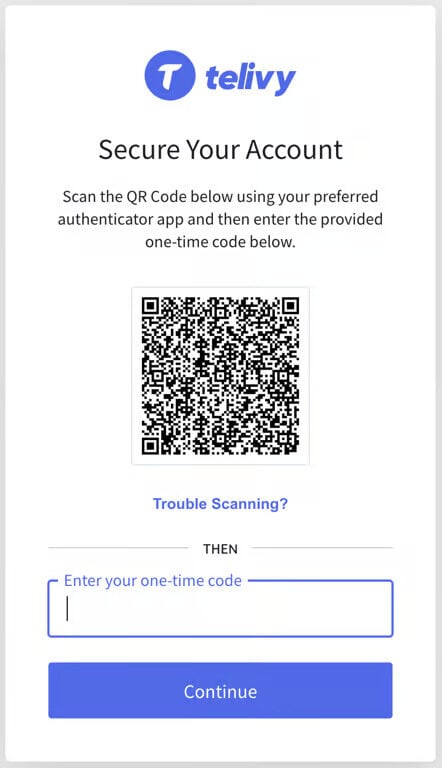 Once you scan the QR code (or enter the code manually), then you will be prompted to enter the one-time code generated by your authenticator app.
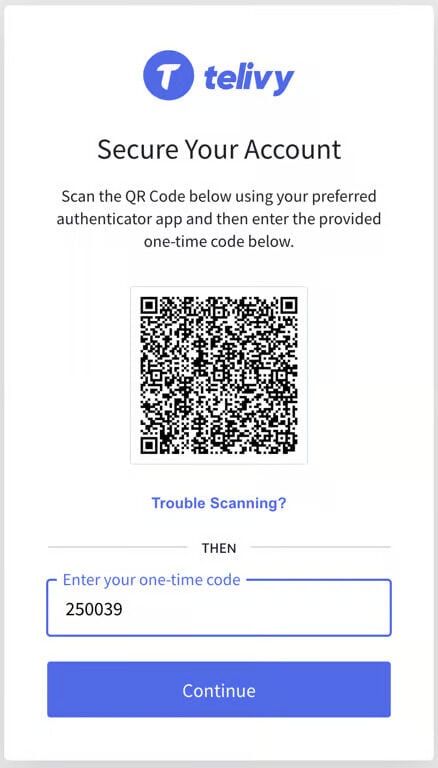 Click on Continue. In the following screen you will be prompted to save a "Recovery Code". A recovery code can be used to log into your Telivy account if you do not have access to your authenticator app or your device. Make sure you keep this recovery code safe.
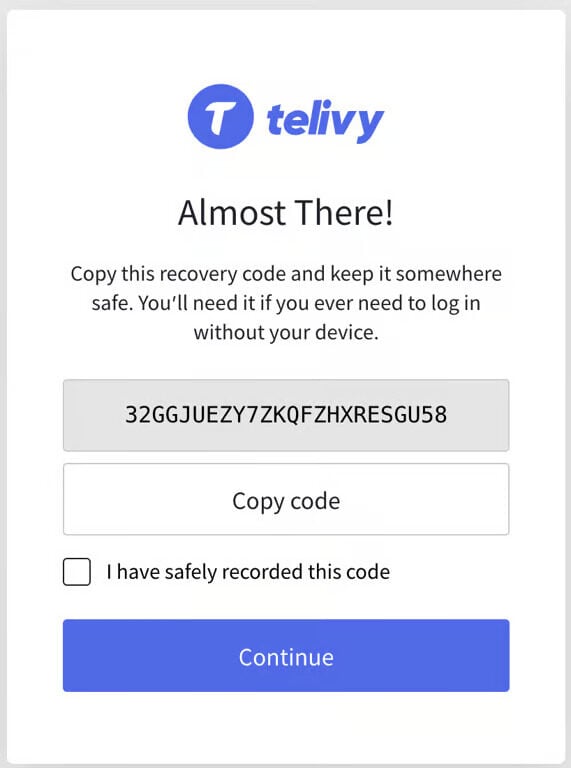 After you save this code, click on the checkbox for "I have safely recorded this code". This should complete the MFA registration.
## Logging Into Your Telivy Portal
Whenever you log in to your Telivy portal, you might be prompted to enter your MFA code.
After you save this code, click on the checkbox for "I have safely recorded this code". This should complete the MFA registration.
## Logging Into Your Telivy Portal
Whenever you log in to your Telivy portal, you might be prompted to enter your MFA code.
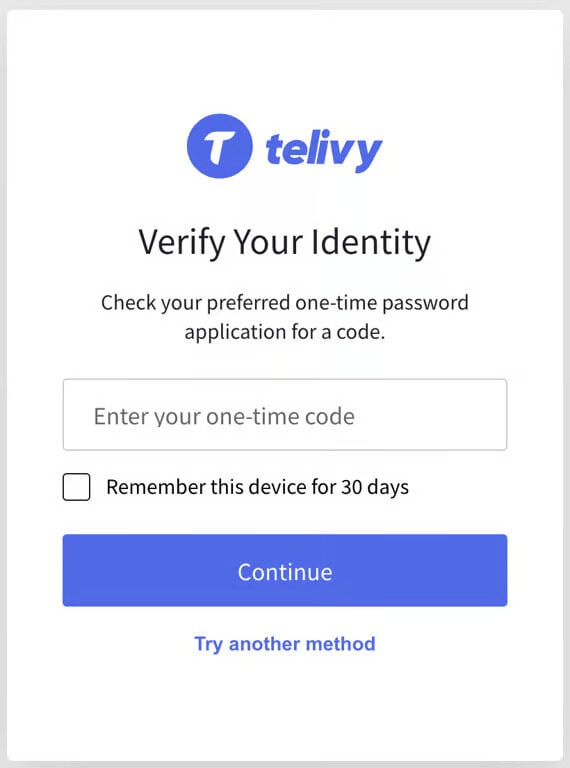 Enter your one-time code from the authenticator app. If you trust your current device, you can choose to remember the device for 30 days, during which you will not be prompted for MFA.
If you do not have access to your authenticator app, choose "Try another method" and you will be prompted to enter your recovery code to log in.
## Troubleshooting
If you have any issues with MFA, please reach out to [support@telivy.com](mailto:support@telivy.com) to raise a support ticket. We might need to verify your identity for security reasons before we can reset the MFA.
Enter your one-time code from the authenticator app. If you trust your current device, you can choose to remember the device for 30 days, during which you will not be prompted for MFA.
If you do not have access to your authenticator app, choose "Try another method" and you will be prompted to enter your recovery code to log in.
## Troubleshooting
If you have any issues with MFA, please reach out to [support@telivy.com](mailto:support@telivy.com) to raise a support ticket. We might need to verify your identity for security reasons before we can reset the MFA.