

Turning it on
The feature is off until an Account Admin joins it for the agency. Other users see the Early Access page read-only.1
Open Early Access
Go to Account > Early Access and find AI-Powered Recommendations & Astra Chatbot under Available Features.
2
Join
Select Join. Because the feature is marked sensitive, a dialog opens before it is turned on.
3
Confirm
Tick I confirm I am authorized for this organization and understand the implications of enabling this feature, then select Enable Feature.
Generating insights
Insights are generated per assessment. Until they exist, the card shows a button that depends on the scan:
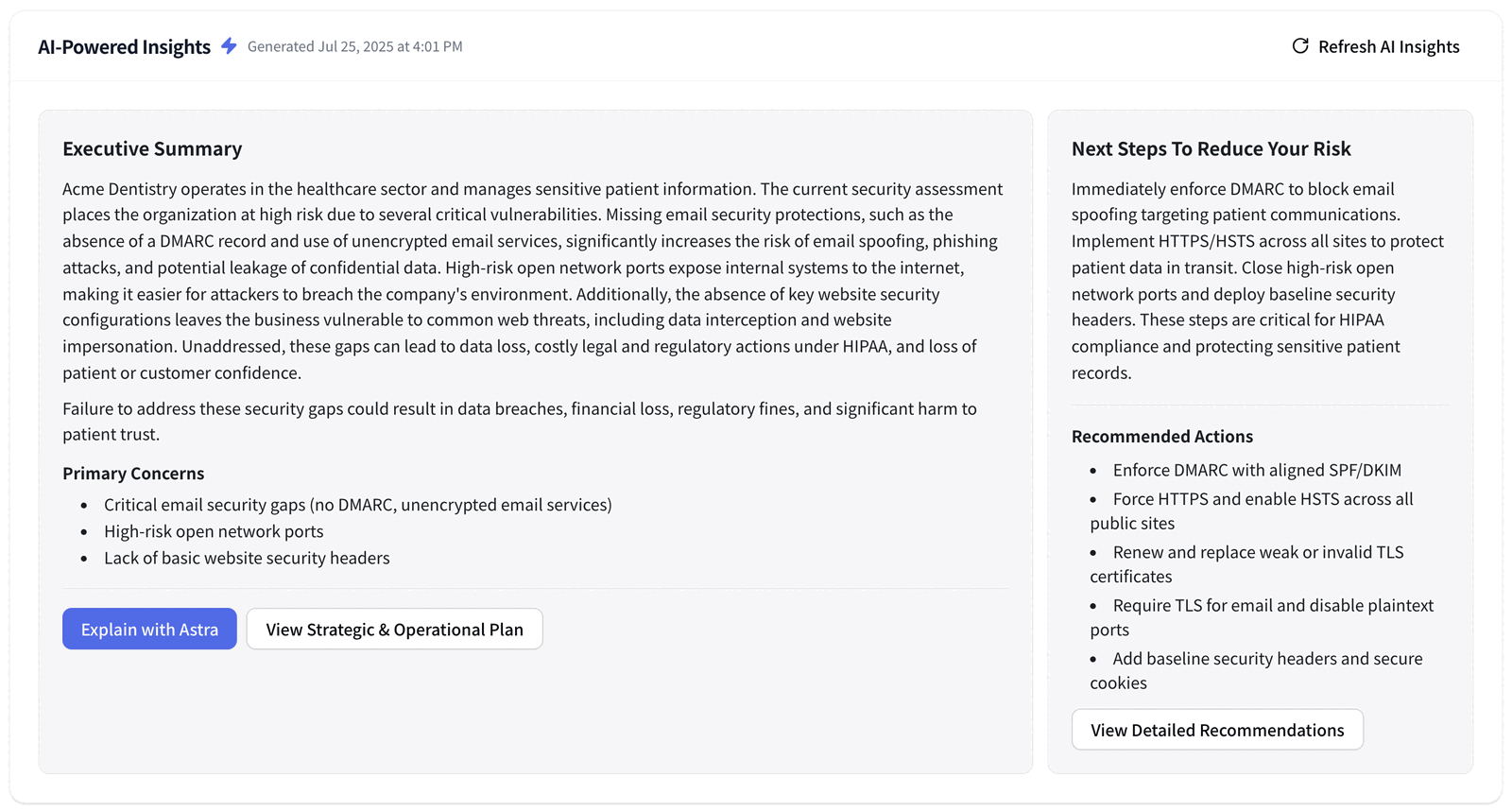
Once insights exist, the card header shows when they were generated and a Refresh AI Insights button. If the assessment’s findings change afterwards, an amber label such as “3 new findings since generated” or “Findings changed since generated” appears next to the title. Select Refresh AI Insights to bring the summary up to date. If generation fails, the card shows Failed, and you can try again with Refresh AI Insights.
What the card shows
Asking Astra
Select Explain with Astra under the executive summary to open a chat with Astra, Telivy’s assistant. Astra starts with the insights on the card as context, so you can ask what a concern means, why an action is recommended, or how to explain it to the client.What is sent to the AI service
When you generate or refresh insights, Telivy asks its AI service to write a report for the client’s company name and domain. The AI service reads the assessment’s own results to build the summary.Related guides
Billing, Usage, and Early Access
How Early Access features are turned on and off
Risk Scoring
How Telivy scores and ranks findings