

What you can build
If your PSA is ConnectWise, Autotask, or HaloPSA, use Telivy’s built-in
PSA integrations for tickets instead. They also close the
finding in Telivy when the ticket closes, which a one-way n8n workflow does not do.
Receive Telivy events in n8n
1
Add a Webhook trigger in n8n
Create a workflow and add a Webhook node. Set HTTP Method to
POST and give it a
Path, such as telivy. Under Respond, choose Immediately, so Telivy gets its
200 response before the rest of the workflow runs.2
Protect the webhook with a header
In the Webhook node, set Authentication to Header Auth and create a credential
with a header name such as
X-N8N-Auth and a long random value. n8n then rejects any
request that does not carry that header.3
Create the webhook in Telivy
In the Telivy portal, open Account → Webhooks and add a webhook. Paste the Webhook
node’s Production URL as the destination and pick the events you want. In
Headers (Optional), enter the n8n credential’s header as JSON, for example
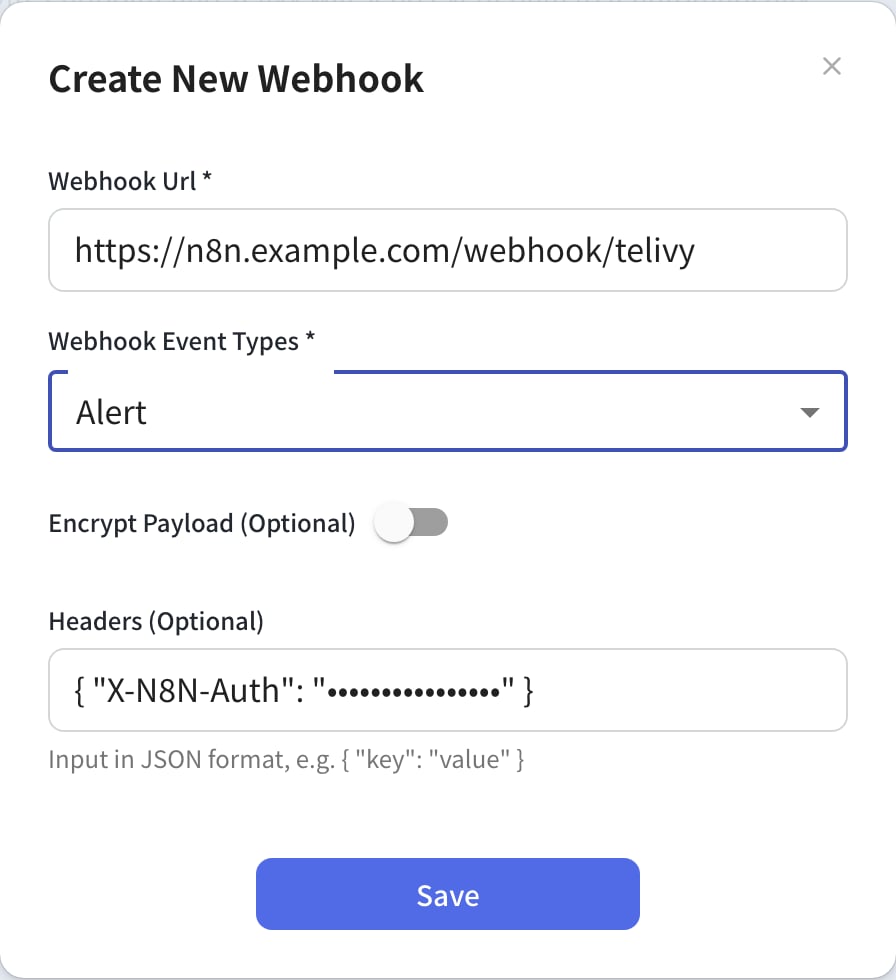
{"X-N8N-Auth": "your-long-random-value"}. See
Setting up webhooks.4
Test, then publish
In n8n, select Listen for test event and switch the URL in Telivy to the Test URL
while you build. Use the test button on the Telivy webhook to send a
TEST event. When
the workflow works, switch Telivy back to the Production URL and publish the
workflow in n8n.body. Route events with a Switch node
on {{ $json.body.metadata.eventType }}, and read the event’s fields from
{{ $json.body.data }}. For example, a SECURITY_GRADE_CHANGED event carries
{{ $json.body.data.domain }}, {{ $json.body.data.previousGrade }} and
{{ $json.body.data.grade }}. Webhook events lists
the fields for every event.
Telivy retries a failed delivery, so the same event can reach n8n more than once. If a
duplicate would cause harm, such as a second ticket, check
metadata.attemptNumber or keep
a record of the IDs you have already handled.Call the Security API from n8n
1
Create the API credential
In n8n, create a Header Auth credential with the name
x-api-key and your agency’s
Telivy API key as the value. Get your API key
explains where to find it.2
Add an HTTP Request node
Set Method to
GET and URL to an endpoint such as
https://api-v1.telivy.com/api/v1/security/external-scans. Under Authentication,
choose Generic Credential Type, then Header Auth, and select the credential.3
Work with the results
The external scans endpoint returns the scans in an
assessments array with a total
count. Add a Split Out node on assessments to get one item per scan, then map fields
such as assessmentDetails.organization_name, assessmentDetails.domain_prim,
securityScore and lastScannedAt into the next node.Related guides
Webhooks
Every event, payload fields, signatures, and retries
Security API
Endpoints, authentication, and the interactive reference