

How the integration works
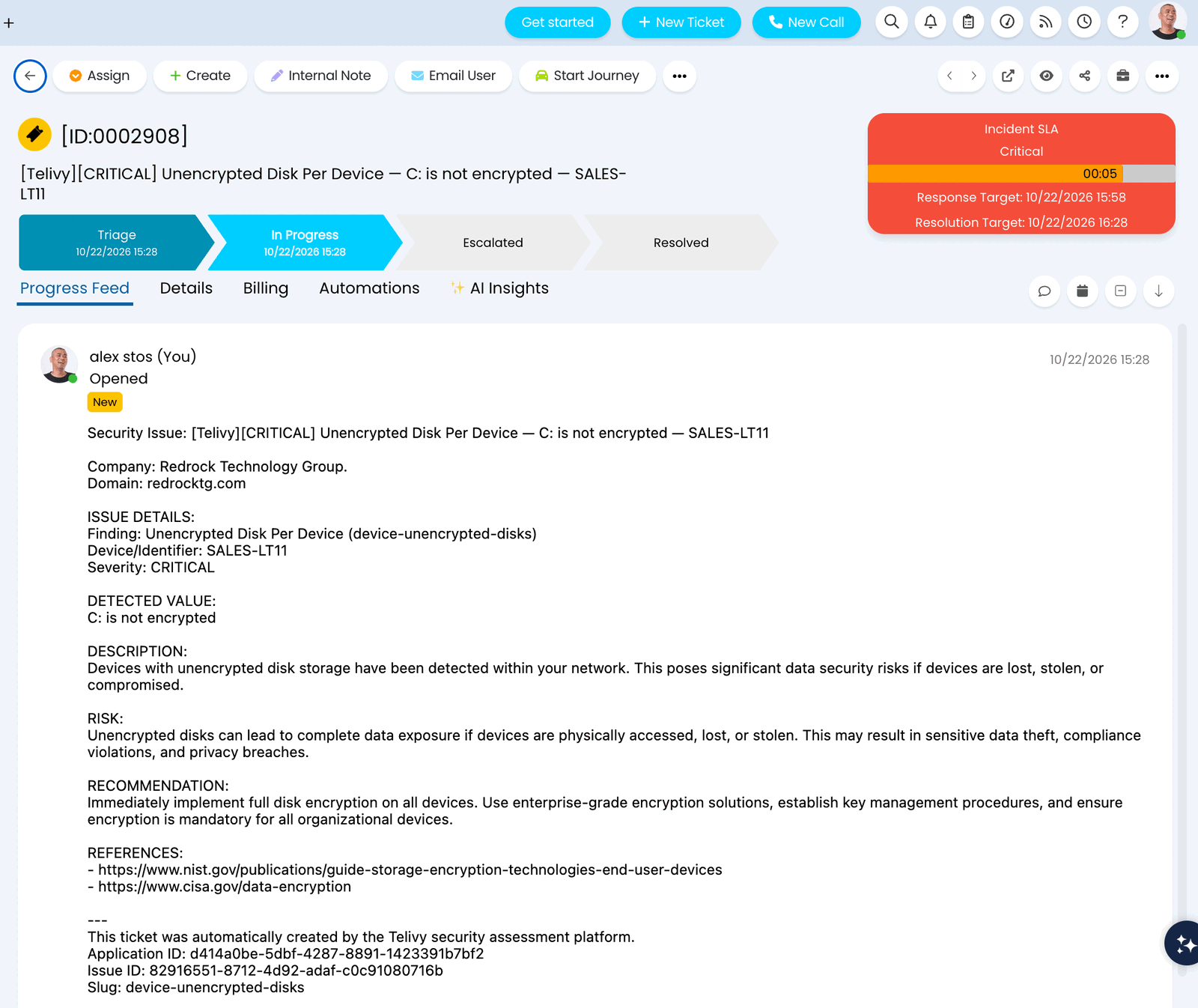
Telivy talks to the HaloPSA REST API with an API application you create in your Halo instance. The application signs in with a client ID and secret (the OAuth 2.0 client credentials flow), so no Halo user password is shared with Telivy. Telivy stores the secret encrypted and never shows it again after you save it. Once connected, the integration does four things:- Opens a ticket per finding. When a scan raises a finding in a category you chose to sync, Telivy creates a Halo ticket against the Halo client you mapped to that company. The ticket title starts with
[Telivy]and the severity, and the ticket body explains the finding, the risk, the recommended fix and the Telivy references. The Halo priority follows the finding severity: Critical findings get priority 1, High get 2, Medium get 3, Low and Info get 4. - Updates the same ticket on rescans. If the finding is still present on the next scan, Telivy updates the title of the existing ticket instead of opening a second one.
- Reads resolutions back from Halo. Every hour Telivy checks the tickets it opened. A ticket that Halo shows as closed (Halo records a close date when a ticket reaches a closing status such as Closed) marks the finding as Resolved in PSA in Telivy, with the ticket number and status in the reason. If the issue is still there, the next scan raises the finding again. You can also run this check on demand from the assessment.
- Closes tickets from Telivy decisions. When you resolve or accept a finding in Telivy, Telivy moves its Halo ticket to the status you choose in the ticket settings.
Permissions Telivy needs
The API application needs exactly three permissions. Telivy does not ask forall, administrator permissions or webhooks.
The application signs in as the Halo agent you pick, so tickets are created under that agent, and the agent’s own team and ticket-type restrictions also apply. Pick an agent that can create tickets of the ticket type you choose in Telivy.
One PSA at a time
An agency connects one PSA. While ConnectWise or Autotask is enabled, the HaloPSA switch is disabled and Telivy shows Disable ConnectWise to connect HaloPSA (or Autotask). Disabling a PSA keeps its credentials and company mappings, so you can switch back later. When you switch, your sync settings under Alerts → Policies carry over to the newly connected PSA. Company mappings do not carry over, because each PSA has its own company records, so map your companies again after switching.Prerequisites
- A HaloPSA instance and a Halo account with access to Configuration → Integrations.
- A Halo agent account the integration can act as.
- A Telivy account with access to Account → Integrations.
Step 1: Create the API application in HaloPSA
1
Open the Halo API settings
In HaloPSA, go to Configuration → Integrations → Halo API. The API Details section lists your Resource Server, Authorisation Server and Tenant. Telivy only needs the address you use to sign in to Halo, for example 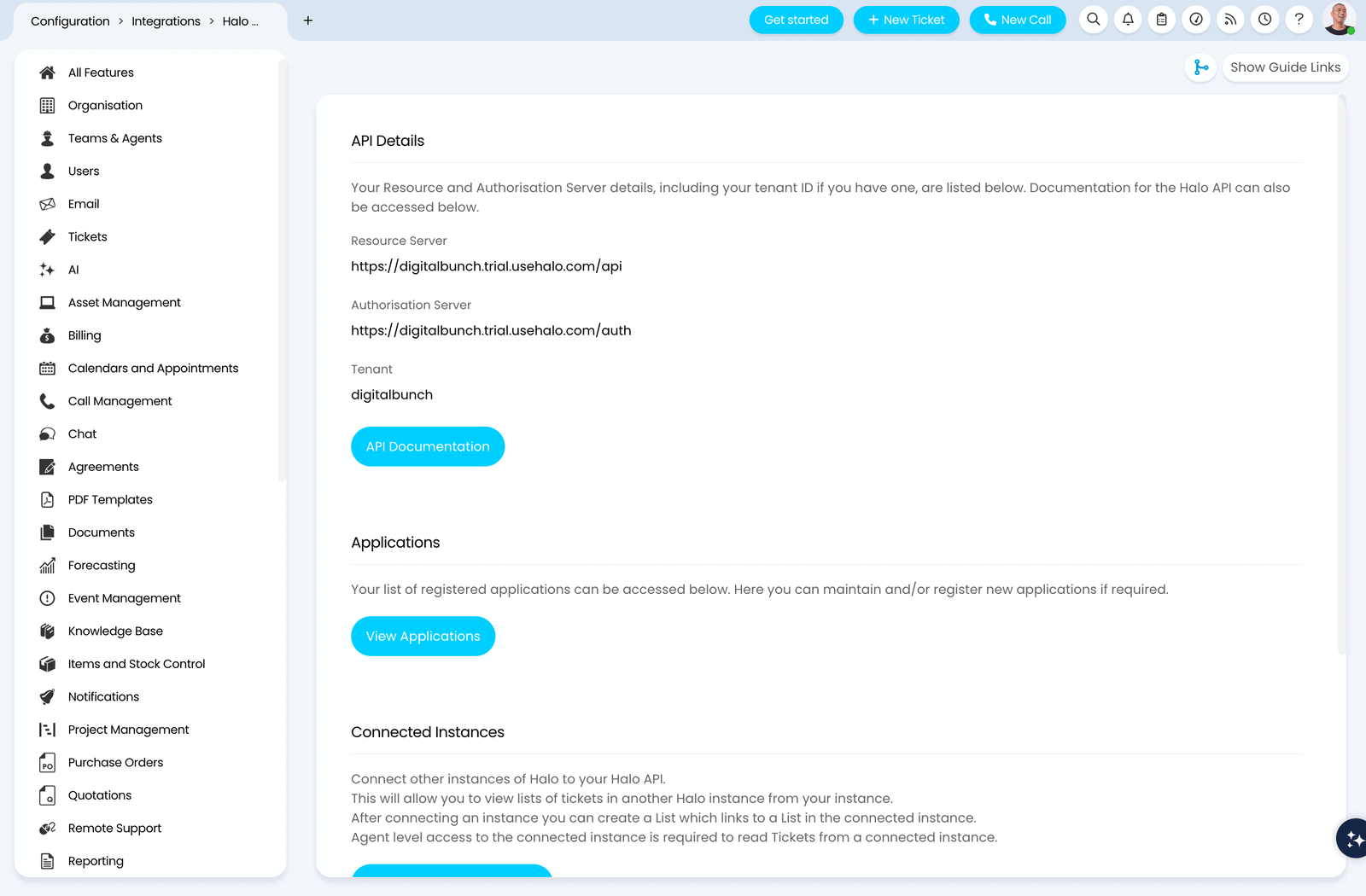
https://yourcompany.halopsa.com.2
Choose Client ID and Secret
Name the application Telivy, keep Active ticked, and set Authentication Method to Client ID and Secret (Services).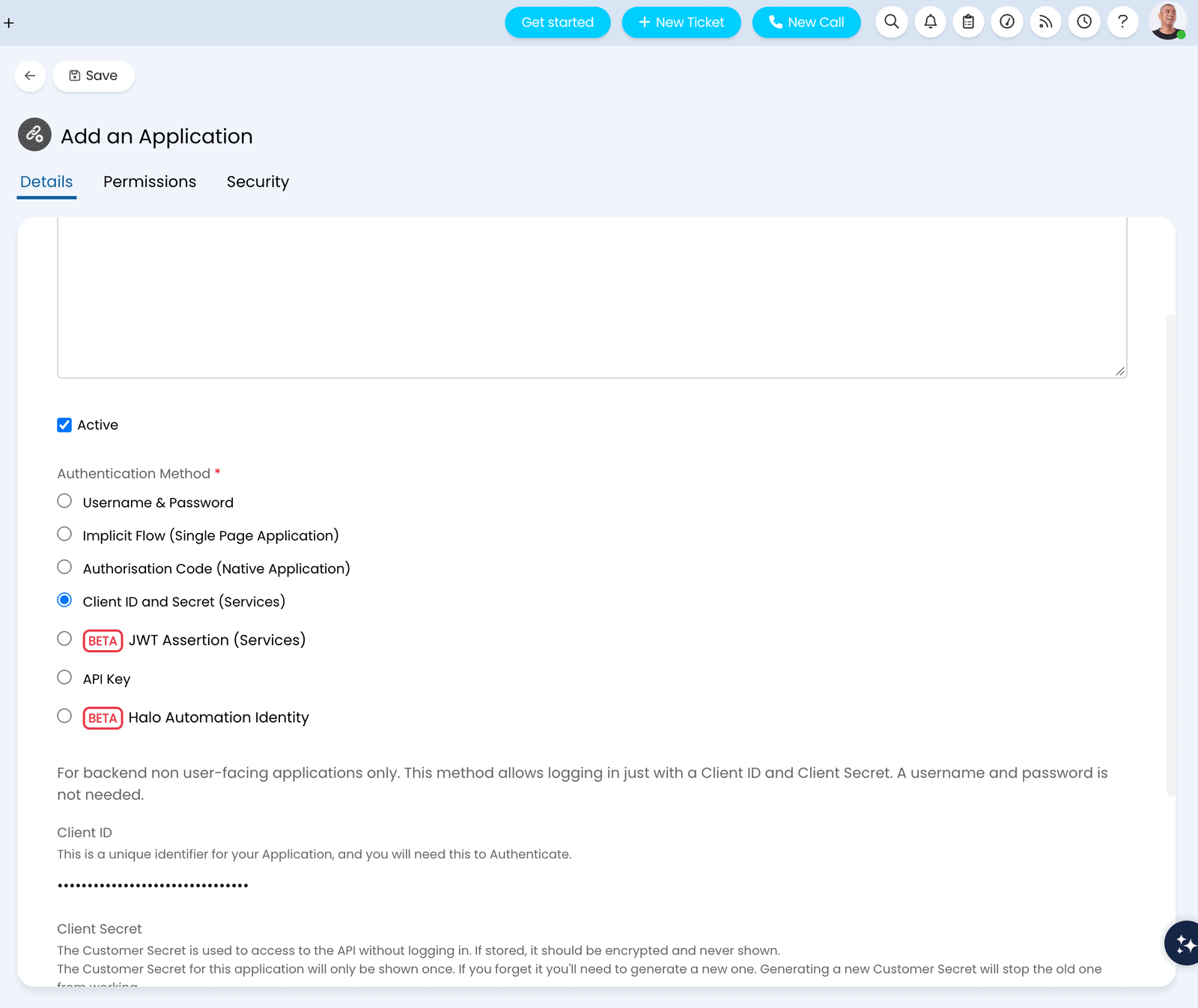
3
Copy the client ID and secret, and pick the agent
Halo generates a Client ID and a Client Secret. Copy both now: Halo shows the secret only once, and generating a new one stops the old one from working.Set Login Type to Agent and Agent to log in as to the agent Telivy should act as.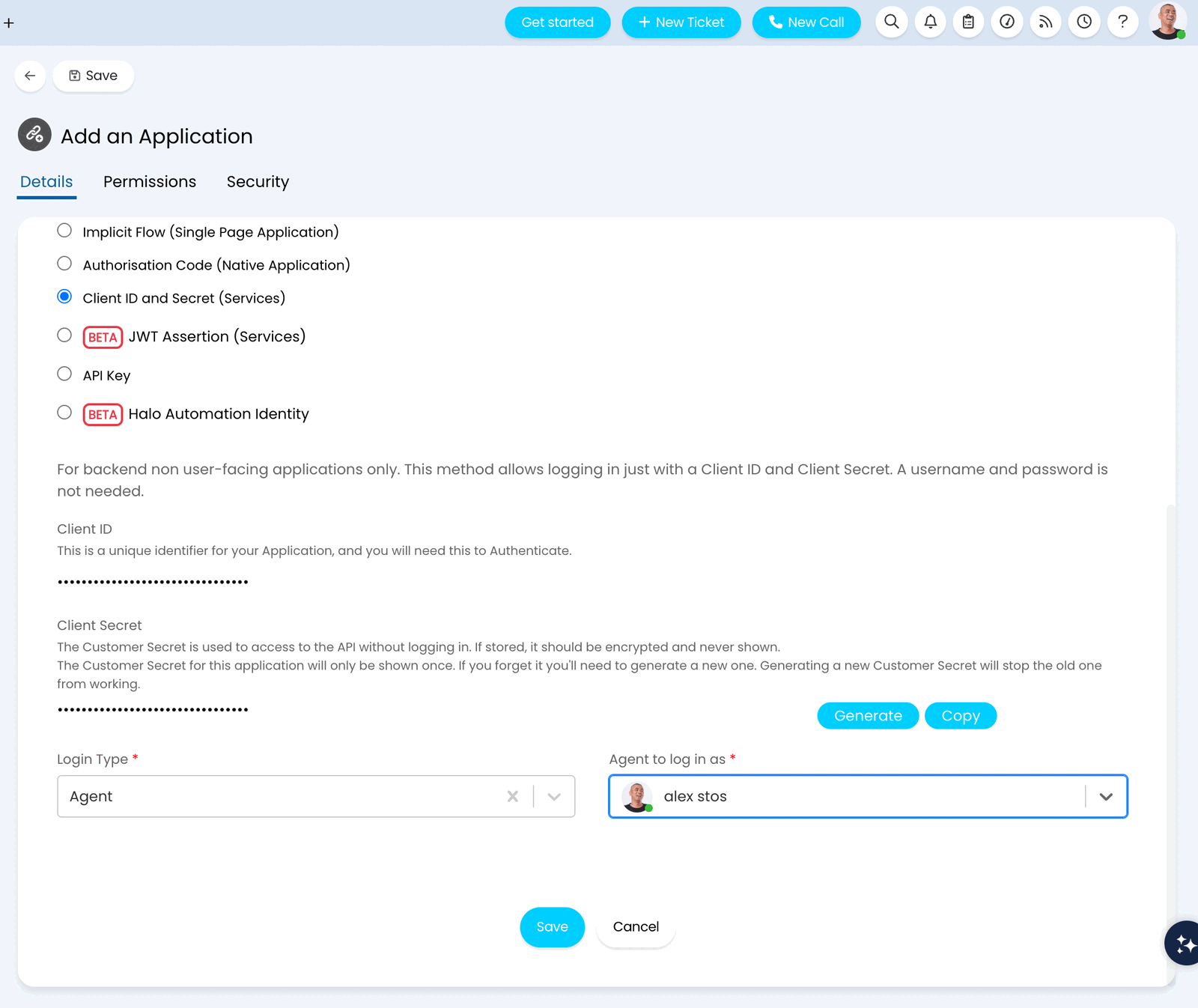
4
Grant the three permissions
Open the Permissions tab and tick only read:tickets, edit:tickets and read:customers. Click Save.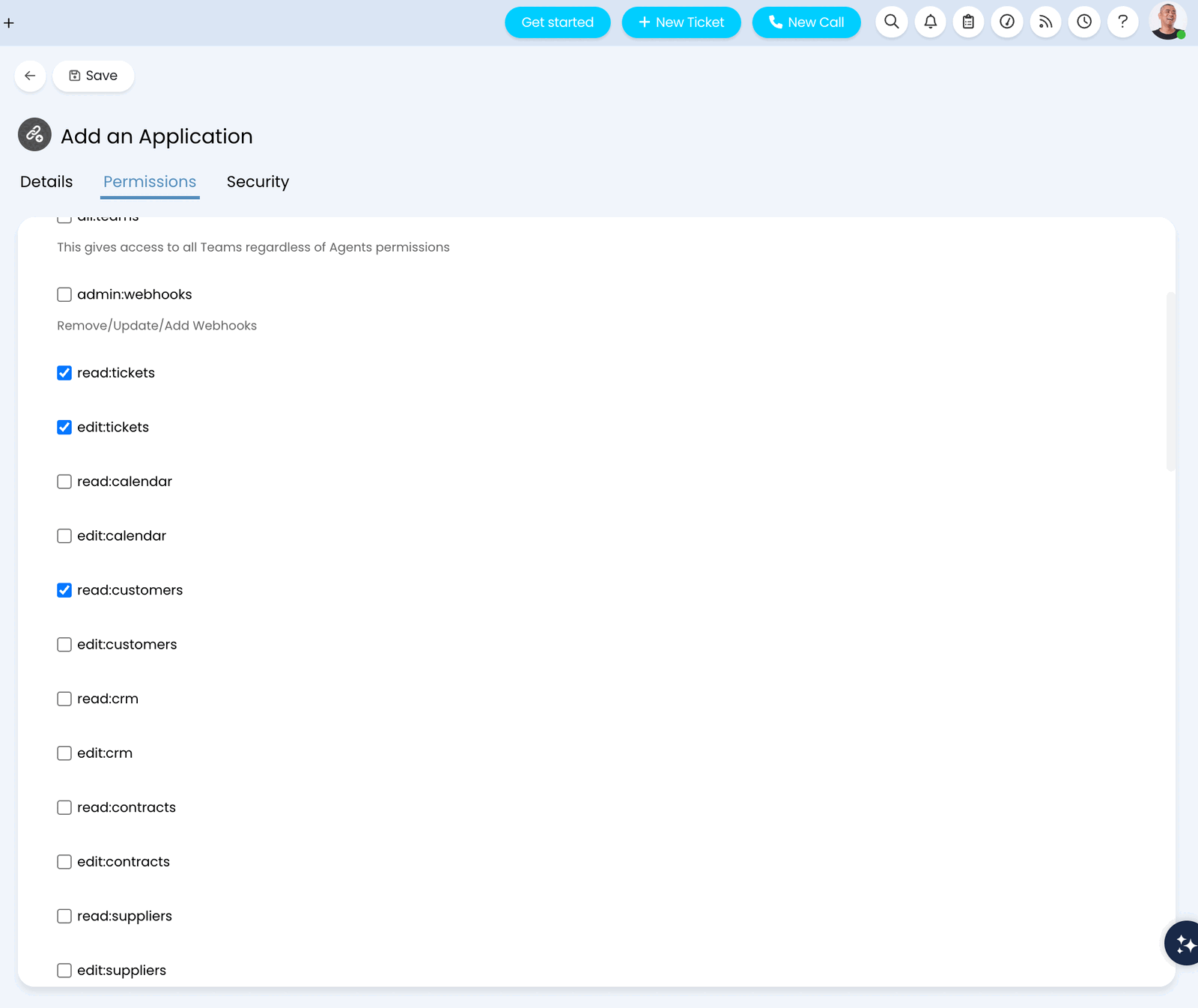
Step 2: Connect HaloPSA in Telivy
1
Pick HaloPSA as your platform
In Telivy, go to Account → Integrations. Under PSA Integrations, choose HaloPSA in the Platform picker.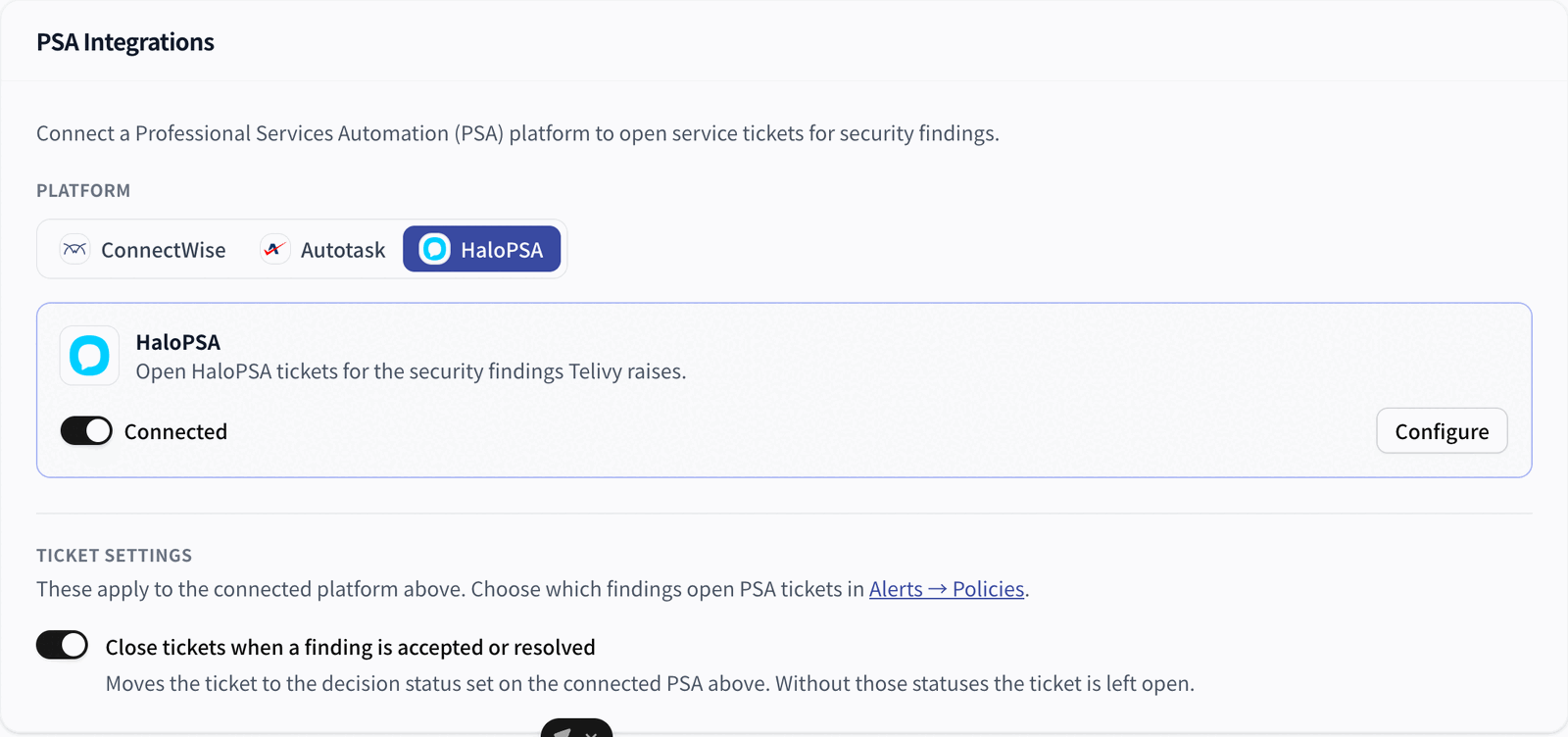
2
Enter the connection details
Turn on the Enable switch. The HaloPSA dialog opens on its 1. Connect tab. Enter: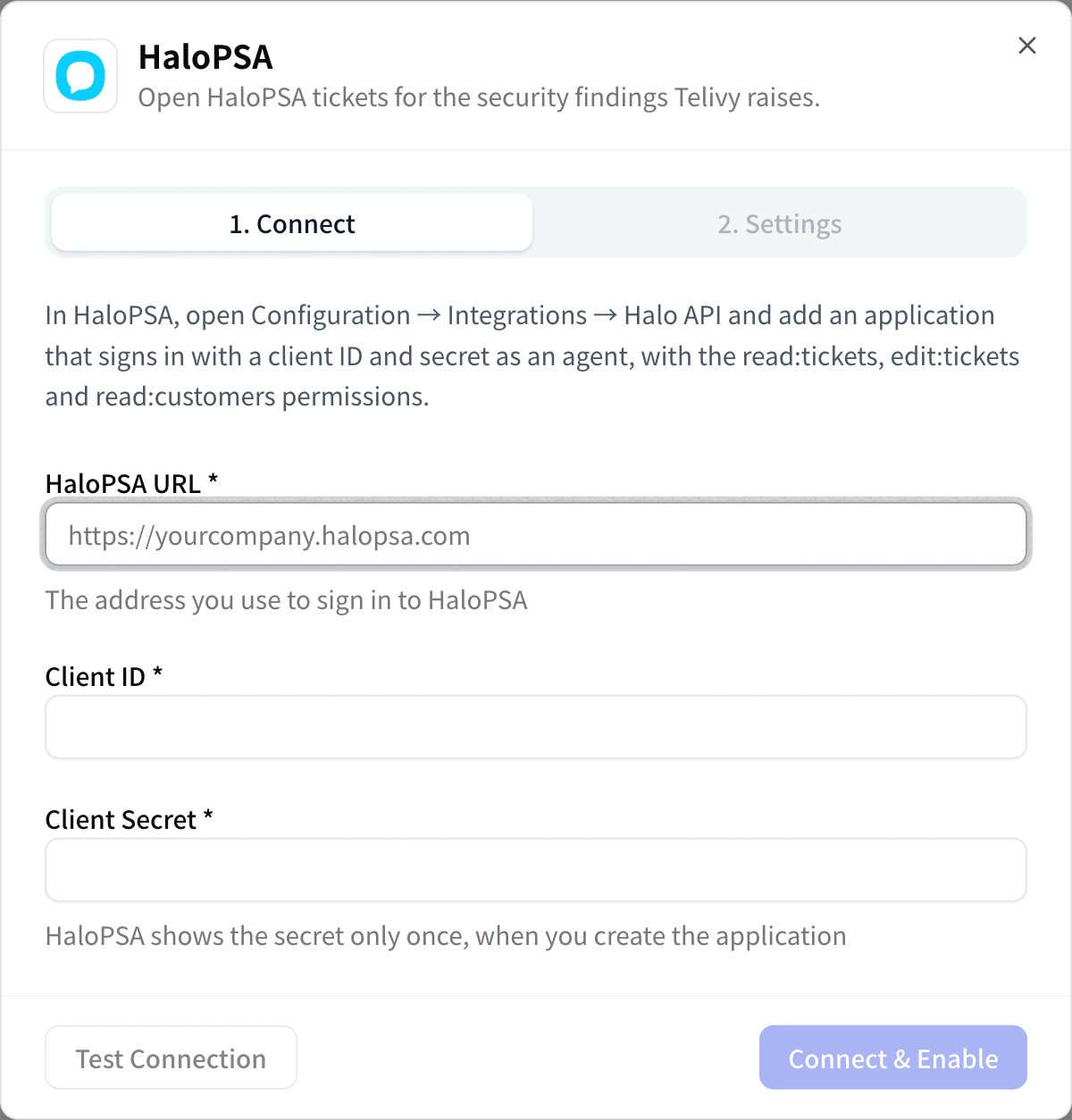
- HaloPSA URL: the address you sign in to Halo with, such as
https://yourcompany.halopsa.com. It must start withhttps://. - Client ID and Client Secret: the values you copied in Step 1.
3
Choose the ticket settings
After connecting, the dialog moves to the 2. Settings tab, filled with the ticket types and statuses from your Halo instance. Under New tickets: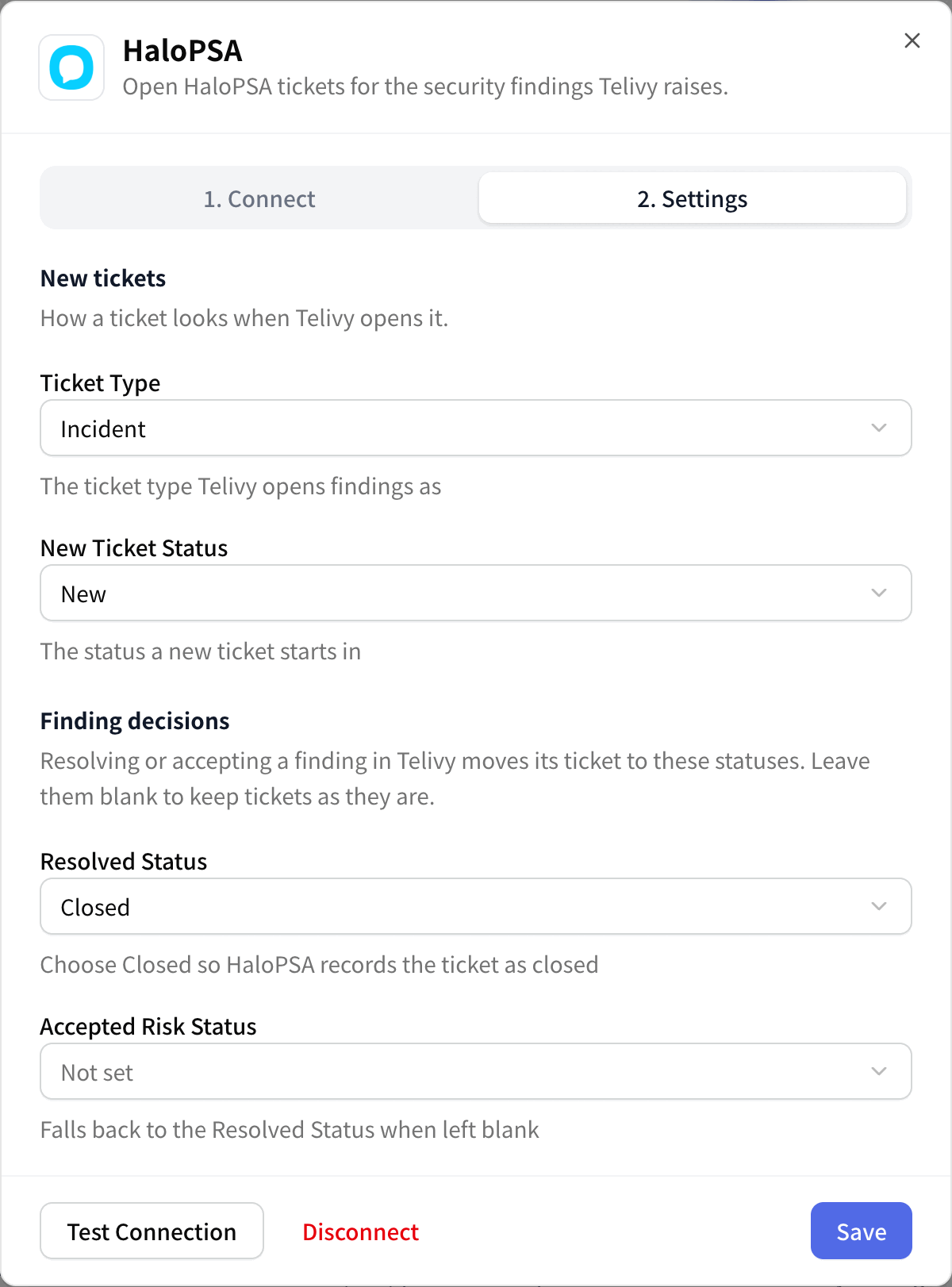
- Ticket Type: the type Telivy opens tickets as, for example Incident. Leave it blank to use Halo’s default.
- New Ticket Status: the status a new ticket starts in. Leave it blank to use Halo’s default. Under Finding decisions:
- Resolved Status: the status Telivy sets when you resolve a finding in Telivy. Choose Closed so Halo records the ticket as closed. Leave it blank if Telivy should not change ticket status.
- Accepted Risk Status: the status Telivy sets when you accept a finding’s risk. If you leave it blank, Telivy uses the Resolved Status.
Step 3: Choose which findings open tickets
Go to Alerts → Policies and pick the finding categories that should open PSA tickets, with an optional severity floor for each. These settings apply to whichever PSA is connected. The Ticket settings section under Account → Integrations also controls whether resolving or accepting a finding in Telivy updates its ticket.Step 4: Map each company to a Halo client
Telivy needs to know which Halo client a company’s tickets belong to. Map each company once. A Halo client can belong to one Telivy company at a time: mapping a client that is already mapped moves it to the new company, and the previous company shows Not mapped again.1
Open the mapping dialog
In Companies, open the actions menu on a company and choose Map to PSA. You can also map from an assessment’s Configuration tab, in the PSA card.
2
Search for the Halo client
In the Map to a HaloPSA client dialog, type at least two characters of the client’s name, pick the client from the results, and click Map client. Telivy checks that the client exists in Halo before saving.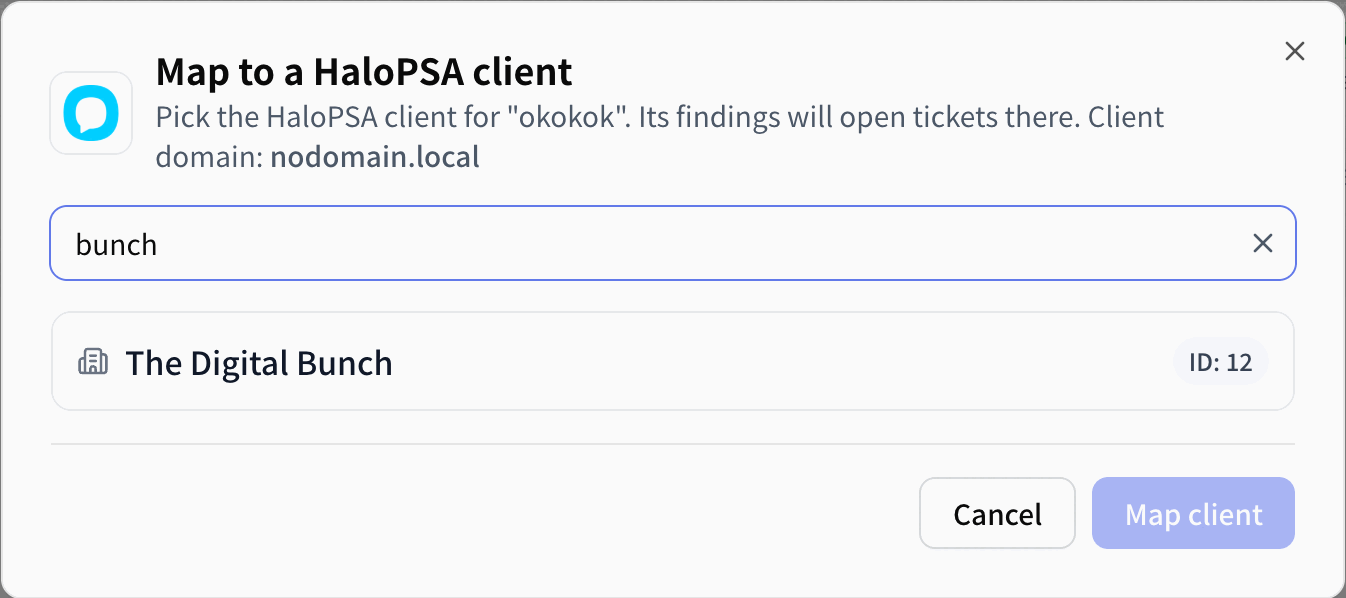
3
Turn on PSA sync for the assessment
Turn on PSA sync for the company’s assessments if it is not already on. Findings that were waiting for a mapping are queued straight away, and Telivy tells you how many.
Check that it works
- Account → Integrations shows HaloPSA as Connected.
- The company shows the Halo client name in the PSA column on Companies.
- New tickets appear in Halo for the mapped client, with titles starting with
[Telivy]. - When a technician closes one of those tickets in Halo, the finding shows Resolved in PSA in Telivy within the hour, or straight away if you refresh resolutions from the assessment.
Troubleshooting
Test Connection fails
Test Connection fails
Check that the HaloPSA URL is the address you sign in with and starts with
https://, that the client ID and secret were copied without extra spaces, and that the application is Active in Halo. If someone clicked Generate in Halo after you copied the secret, the old secret no longer works: copy the new one and reconnect.Telivy says the API application is missing a permission
Telivy says the API application is missing a permission
Open the application in Configuration → Integrations → Halo API → View Applications and make sure read:tickets, edit:tickets and read:customers are ticked on the Permissions tab.
The HaloPSA switch is greyed out
The HaloPSA switch is greyed out
Another PSA is connected. Disable it under Account → Integrations first. Its settings and mappings are kept.
Findings are not creating tickets
Findings are not creating tickets
Check that the company is mapped to a Halo client, that PSA sync is on for the assessment, and that the finding’s category is selected in Alerts → Policies. If Halo rejects the ticket, the finding’s PSA status in Telivy shows Halo’s reason, for example a ticket type the agent cannot create.
Closed tickets are not resolving findings in Telivy
Closed tickets are not resolving findings in Telivy
Telivy treats a ticket as resolved when Halo records a close date for it. Statuses that do not close the ticket in Halo, such as Completed or In Progress, are not read back. Move the ticket to Closed.