

Where the tile is
The Telivy + HDS PenTesting tile is in the Services card at the bottom of an assessment’s integrations page:- On a Risk Assessment, open the Setup tab and select 4. Integrations.
- On an External Assessment, open the Setup tab and select 4. Integrations.
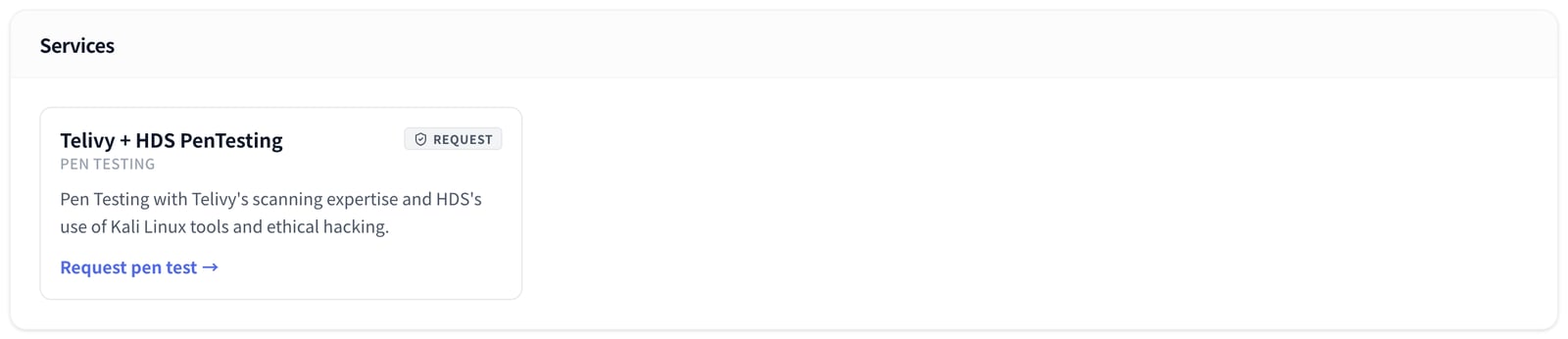
Requesting a test
1
Open the tile
Select Request pen test on the Telivy + HDS PenTesting tile. The Request Pen Test dialog opens.
2
Confirm
The dialog explains that the service is offered by HDS and that Telivy partners get 10% off. Select Confirm.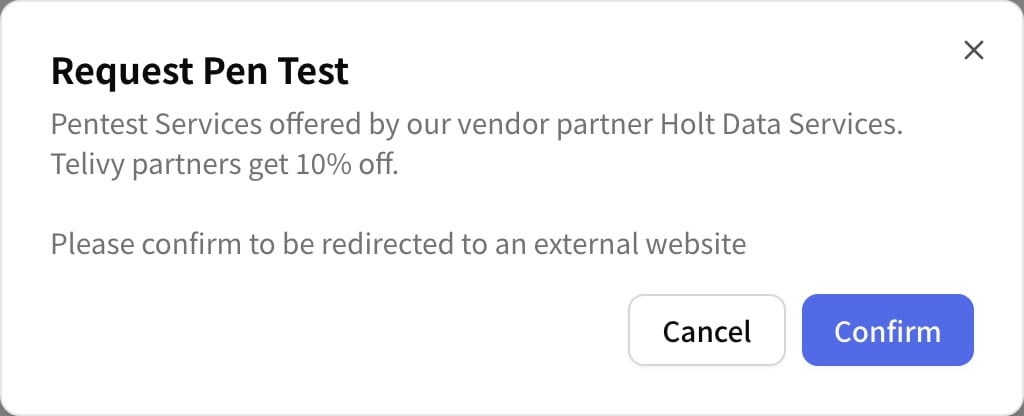
3
Continue on the HDS site
Telivy opens the HDS pen testing page in a new browser tab. Continue the request with HDS there.
What the request does
Selecting Confirm records on the assessment that a pen test was requested and notifies the Telivy team, with the client’s name, that you are exploring pen testing services. Telivy does not send the assessment’s findings or any client data to HDS. The HDS page opens without any client details, so give HDS what it needs yourself. The 10% partner discount is offered by HDS to Telivy partners.Related guides
All integrations
Every tool Telivy connects to
External Assessments
What Telivy checks on a client’s public attack surface