

Making a decision
Decisions are made from the assessment’s findings view. You reach it by opening a finding from the Overview tab, the Compliance tab, the Cloud tab, an alert, or a row in the Risk Register.1
Pick the findings
In a findings list, tick the findings you want to decide on and click
Accept/Resolve. The button shows how many findings are selected. On a single
vulnerability, use Accept/Resolve in the row’s action menu instead.
2
Choose the decision type
The Risk Decision dialog offers two types:
3
Give a reason
Reason is required and must be at least 20 characters long. It is shown in the
register and in the decision’s history.
4
Set the review period
Review Period is required and defaults to 90 days. Choose 30 days, 60 days, 90
days, 180 days, or 1 year, and the dialog shows the date the decision expires. Choose
Custom date to pick a date from today onward, or Never expire for a decision
that has no review date. Then click Save Decision.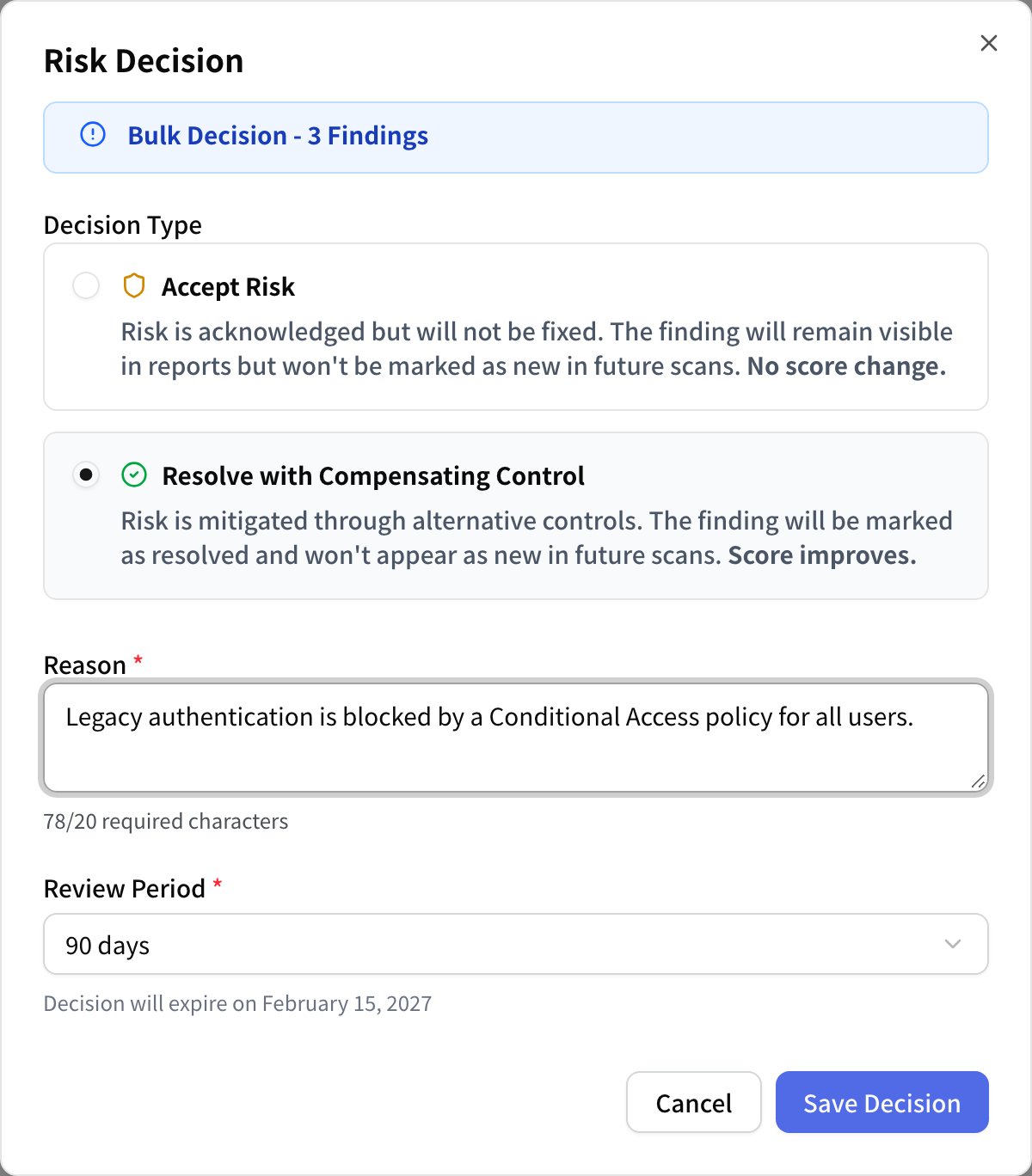
A third decision type, Resolved in PSA, is recorded by Telivy when your connected PSA
reports the finding’s ticket as resolved. You cannot choose it in the dialog. See
PSA grouped tickets for how findings reach your PSA.
Accepting and resolving vulnerabilities
Vulnerability (CVE) findings open in a dashboard with a By CVE tab, a tab that groups them by device (or by domain or asset, depending on what the vulnerability affects), and an All findings tab. Each row has an action menu with Accept/Resolve, which opens the same Risk Decision dialog for the findings in that row.Patch status per device
In the per-device vulnerability rows, the Patch status column shows whether the installed version of the product on that device is affected.
Not verified has two possible reasons: Telivy could not read the installed version of the
product on the device, or the vendor has not published which versions are affected.
The Register tab
The Register tab lists the decisions for the assessment, 50 per page.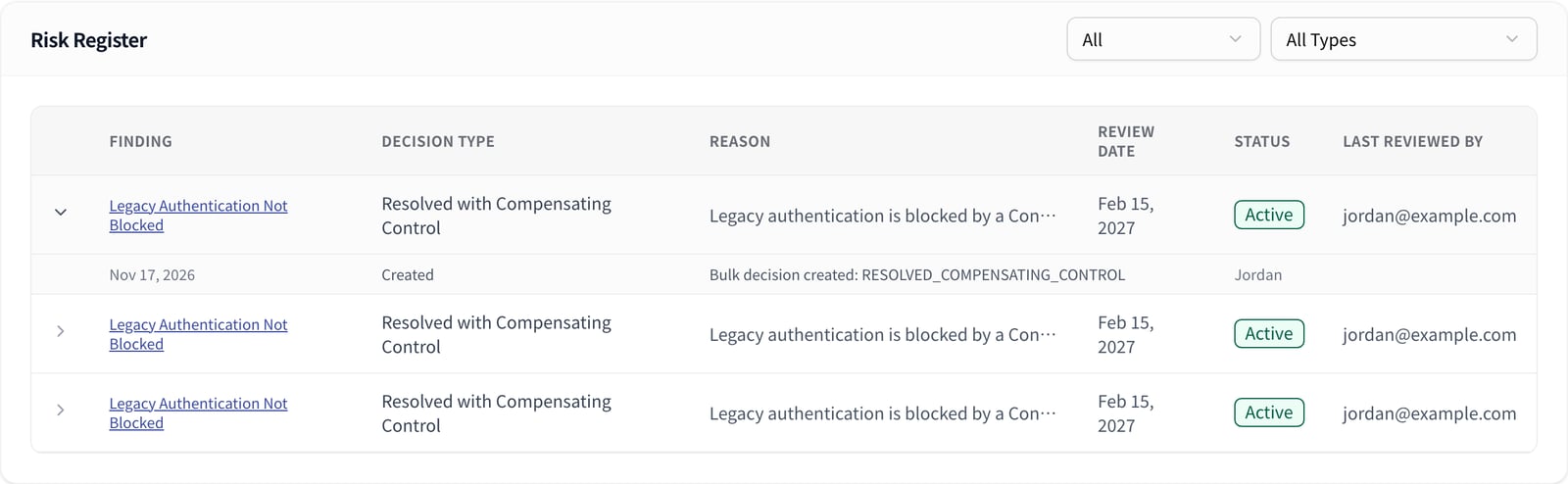
Review status on the Overview tab
Once an assessment has decisions in its register, the Overview tab shows a Risk Register Review Status panel with up to three counts: Overdue, Due in 30 days, and Due in 60 days. A count only appears when it is above zero. Clicking a count opens the Register tab filtered to those decisions.Related guides
Risk Score
How the overall Risk Score is calculated
Send findings to your PSA
Findings resolved in your PSA show here as Resolved in PSA