
Telivy Agent Auto-Update

How Auto-Update Works

Each time an agent performs its hourly scan, before starting the scanner, it checks the update manifest. If an update is available, the system:
  1. Downloads the MSI (Windows) or PKG (macOS) update.
  2. Runs validation — hash check, certificate verification, and installer size.
  3. Creates update metadata and launches the installer upgrade.
  4. Shuts down the agent, completes the upgrade, and restarts it.
  5. On restart, the agent detects the previous update metadata and sends a final confirmation that the update succeeded.
If the update is unsuccessful, an error message with a log is sent to the backend. The agent will retry the upgrade up to 3 times before stopping further attempts.

Configuring Auto-Update

Auto-update settings follow a priority hierarchy. More specific settings always override broader ones:
LevelPriorityScope
Account#3 (lowest)Applies to all assessments and machines
Assessment#2Overrides account settings for all machines in the assessment
Machine#1 (highest)Overrides both account and assessment settings for a specific machine
The system uses the most specific setting available. For example, if auto-update is enabled at the assessment level, the setting applies to all machines in that assessment unless overridden at the machine level. This allows granular control: you can enable auto-updates broadly at the account level, test beta versions on a few machines first, or disable updates for specific machines that require stability.

Account Level

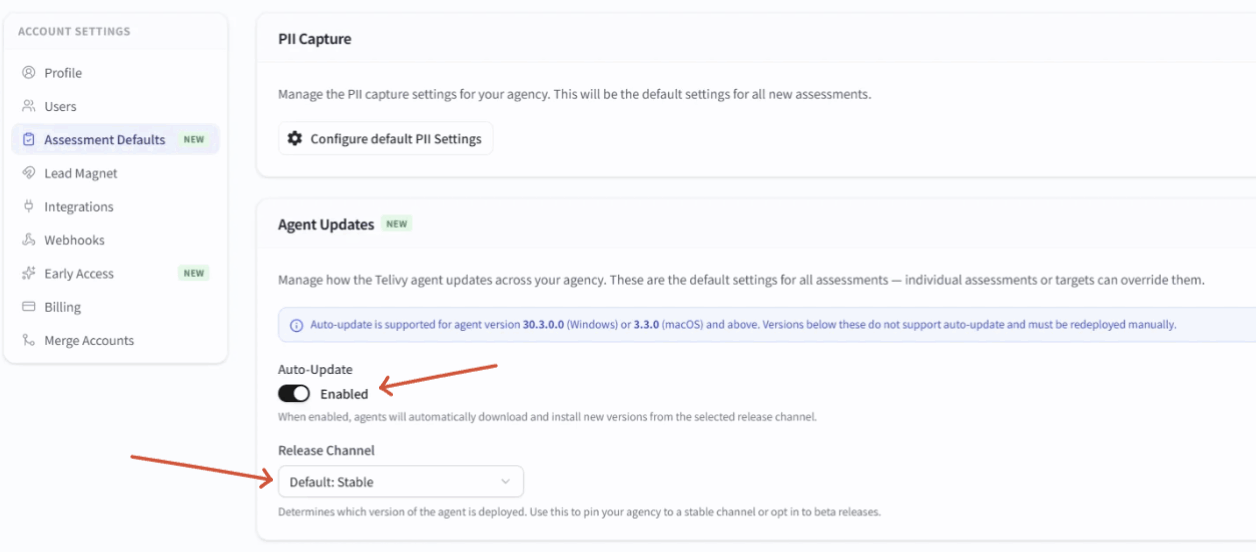
Navigate to Account Settings -> Assessment Defaults: https://portal.telivy.com/agent/account/assessments Account Settings Agent Updates Use the switch to turn on the feature and select the Release Channel. For the account level, Stable is recommended.
Assessment Level

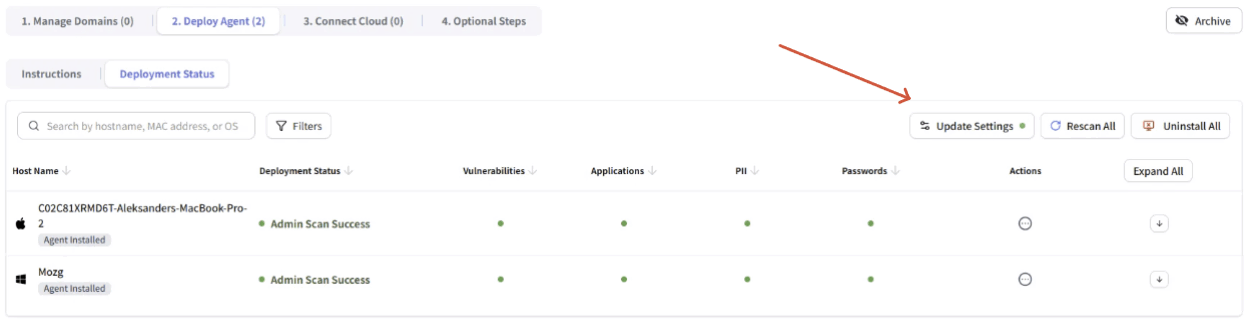
Navigate to a specific Assessment -> Setup -> 2. Deploy Agents -> Deployment Status. Assessment Deployment Status 2 Click Update Settings to open the Assessment Update Settings dialog. Assessment Update Settings Here you can override account settings with assessment-specific settings.
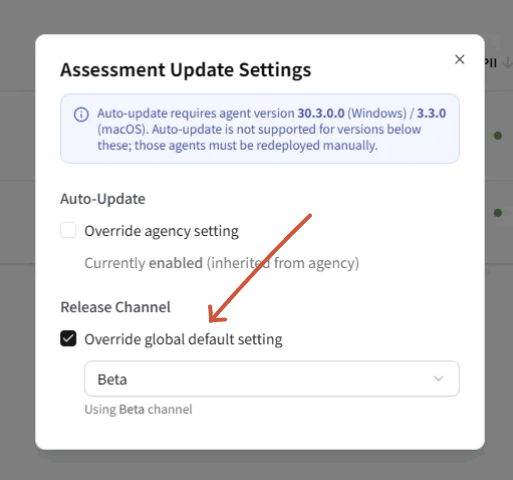
Minimum agent version required: Auto-update requires agent version 30.3.0.0 (Windows) or 3.3.0 (macOS). Agents running older versions do not support auto-update and must be redeployed manually.
Options:
  • Auto-Update — Check “Override account setting” to set a different auto-update toggle for this assessment. The dialog shows the current inherited status (e.g., “Currently enabled (inherited from account)”).
  • Release Channel — Check “Override global default setting” to select a different channel for this assessment.

Machine Level

Navigate to a specific Assessment -> Setup -> 2. Deploy Agents -> Deployment Status, then open the Actions menu for a specific machine. Machine Actions Menu Select Update Settings to open the Target Update Settings dialog. Machine Update Settings Here you can override both account and assessment settings for an individual target. Options:
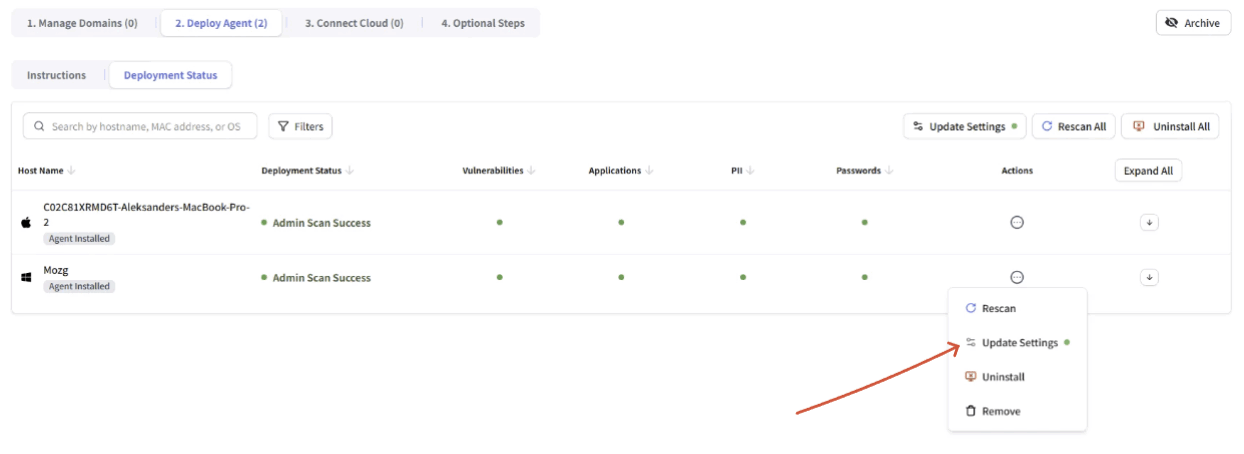
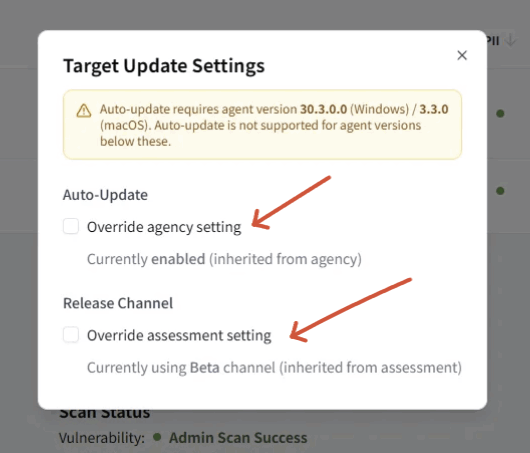
  • Auto-Update — Check “Override account setting” to enable or disable auto-update for this specific machine. The dialog shows the current inherited status (e.g., “Currently enabled (inherited from account)”).
  • Release Channel — Check “Override assessment setting” to assign a different channel to this machine. The dialog shows the inherited channel (e.g., “Currently using Beta channel (inherited from assessment)”).

Release Channels

ChannelPurpose
StableProduction-ready releases, recommended for most deployments
BetaPre-release versions for early testing
Select the release channel at whichever configuration level is appropriate for your deployment strategy. The Stable channel is recommended for production environments.

Configuration Examples

Example 1 — Enable auto-update for all clients: Set Auto-Update to Enabled at the Account level with the Stable channel. All assessments and machines inherit this setting automatically. Example 2 — Test beta on one assessment: Keep the Account level on Stable. Override the Release Channel to Beta on a single assessment. All machines in that assessment receive beta updates while everything else stays on Stable. Example 3 — Test beta on specific machines only: Keep the Account level on Stable. Override individual machines to the Beta channel via the Machine Level settings. Only those specific machines receive beta updates. Example 4 — Opt a machine out of auto-update: Enable auto-update at the Account or Assessment level. Override a specific machine’s Auto-Update setting to Disabled. That machine will not auto-update while all others continue as configured.

Frequently Asked Questions

Q: What happens if an update fails? The agent logs the error, sends the log to the backend, and retries the upgrade up to 3 times. If all retries fail, the agent continues running on its current version. Q: Do I need to uninstall the old agent before updating? No. The auto-update process performs an upgrade-in-place. Manual uninstallation of the previous version is not required. Q: What is the minimum agent version that supports auto-update? Windows: 30.3.0.0 | macOS: 3.3.0. Agents running older versions must be redeployed manually with a current installer. Q: How often does the agent check for updates? The agent checks the update manifest every hour, before each scheduled scan. Q: Can I mix Stable and Beta across my environment? Yes. The priority hierarchy (Account < Assessment < Machine) allows you to run different channels at different levels. For example, you can keep your account on Stable while testing Beta on a specific assessment or individual machines.