

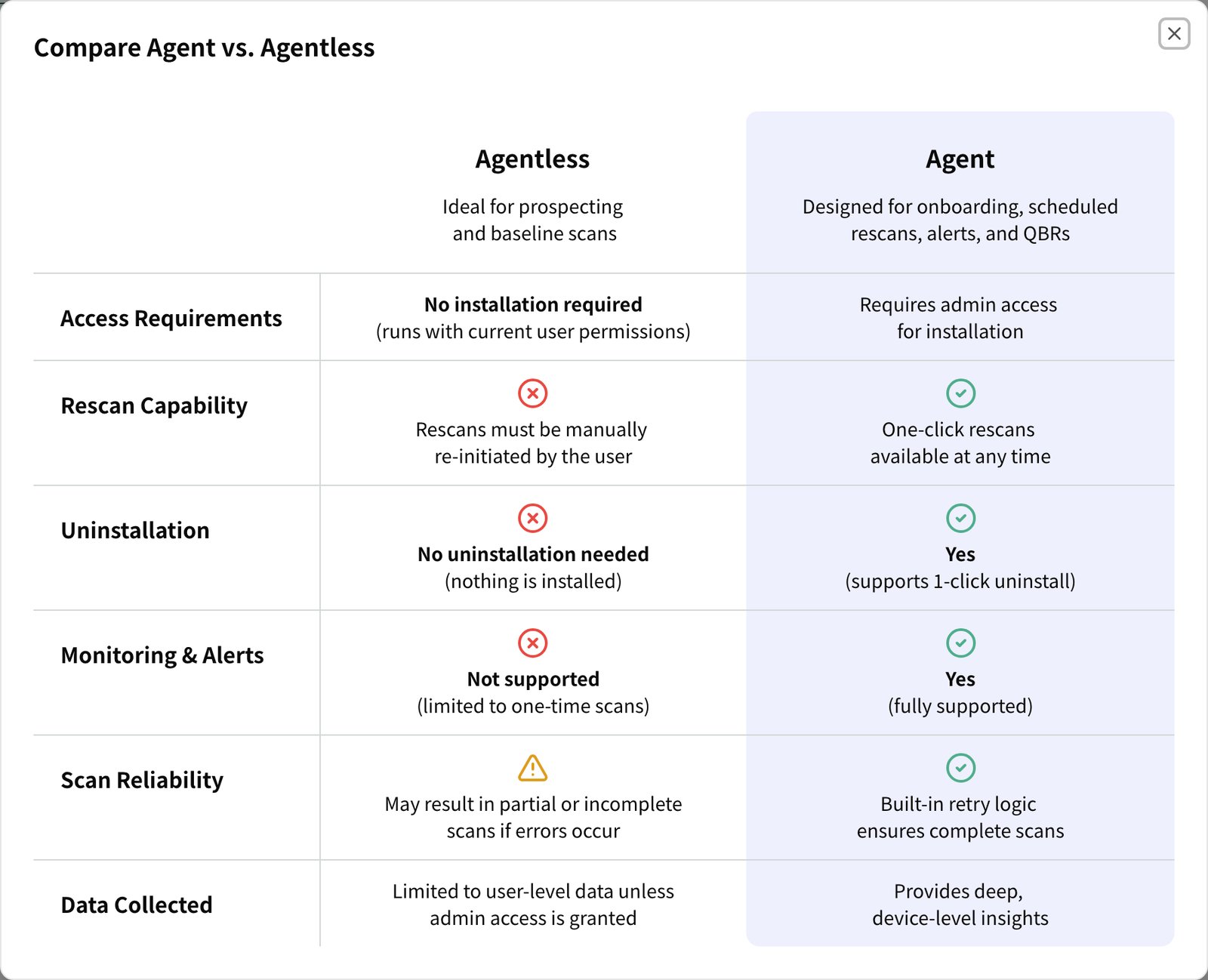
A standard-user agentless scan only sees what that user can open, so PII and password coverage
is narrower than with the agent.
How agentless devices show up
On the assessment’s Inventory > Endpoints page and under Deployment Status, a device scanned without the agent shows an Agentless Scan badge, and its agent status reads “Not installed, scanned agentlessly”. The device cannot be rescanned or uninstalled from the portal. If no device in the assessment has an online agent, Rescan All and Uninstall All are disabled. The agentless scanner still completes when an EDR such as ThreatLocker blocks the agent installer, which is the usual reason a device you meant to install the agent on shows up as agentless. Allow Telivy first, then run the agent installer again.Enhanced Agentless Deployment (Beta) on Windows
On Windows, the Agentless instructions include a second scanner under Enhanced Agentless Deployment (Beta). It is a separate download from the standard agentless scanner, and the instructions for employees do not apply to it. The enhanced scanner runs with elevated system privileges so it can scan Chrome passwords in full, including passwords protected by Chrome’s App-Bound Encryption (Chrome v20). This gives much more complete password coverage than the standard agentless scanner. Run it as Administrator. Select the Download Telivy Scanner, Enhanced (Beta) button or the Copy Link to Download button next to it. A dialog explains the scanner first, and you confirm with I understand, download or I understand, copy link.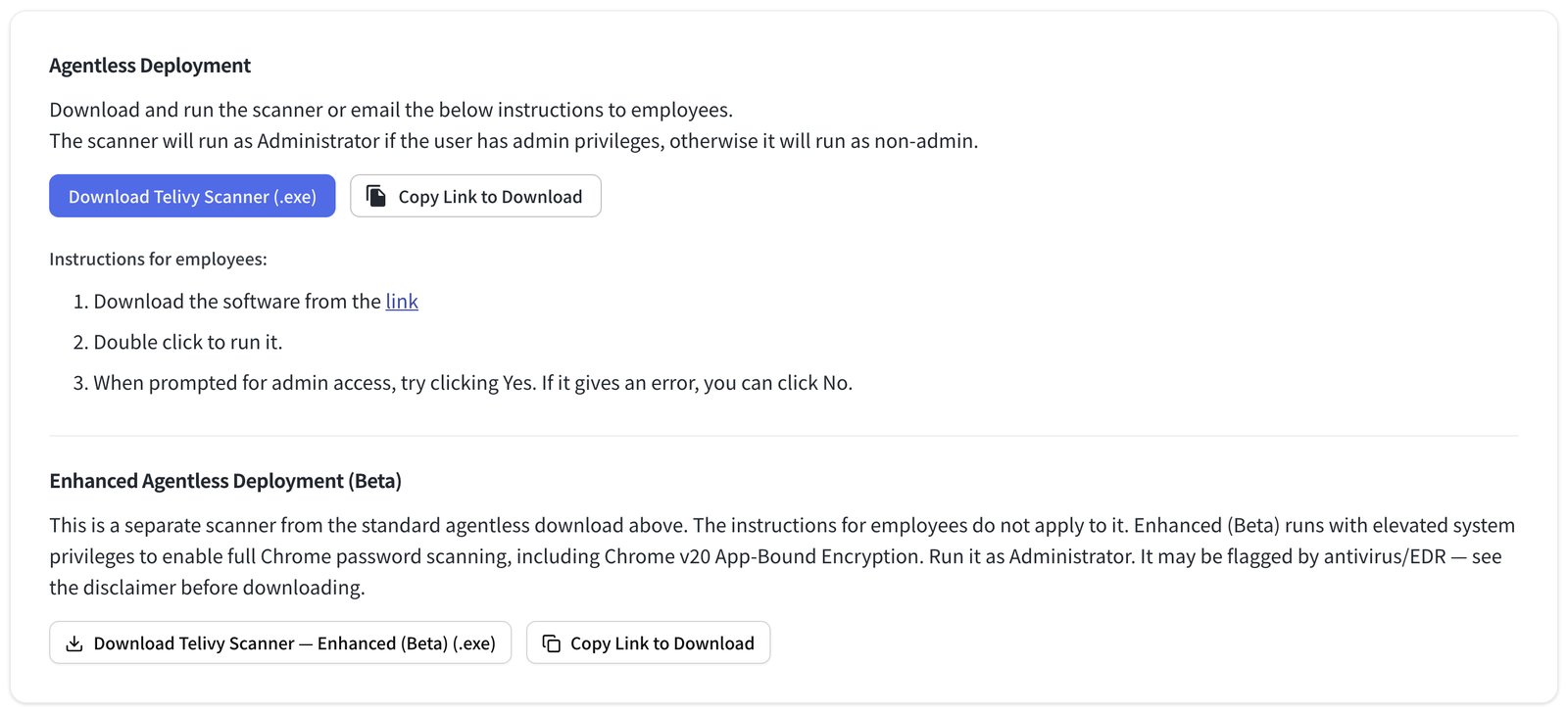
Install guides
Install on Windows
RMM command, installer, or agentless scanner
Install on macOS
RMM or MDM command, installer, or agentless scanner