

Where the data comes from
The cards on the Network view use two kinds of scan. Internal results come from the Telivy agent, which reports the software and services on each device so Telivy can match them to known CVEs. External results come from Telivy’s scan of the client’s domains and public IP addresses, which needs no agent. For how CVEs are matched and scored, see Vulnerability Data Sources.The Network view
Open the assessment, go to Security, and select Network. The page is titled Network Security.Summary
The Summary card shows three numbers: Devices is the number of devices the agent has scanned, and Critical Vulnerabilities and High Vulnerabilities count the unique CVEs of that severity across those devices. A CVE found on ten devices counts once.Internal Vulnerabilities
This card shows two charts built from the agent scan, Vulnerability by Devices and Vulnerability by Risk Level. The number next to the title is the count of scanned devices.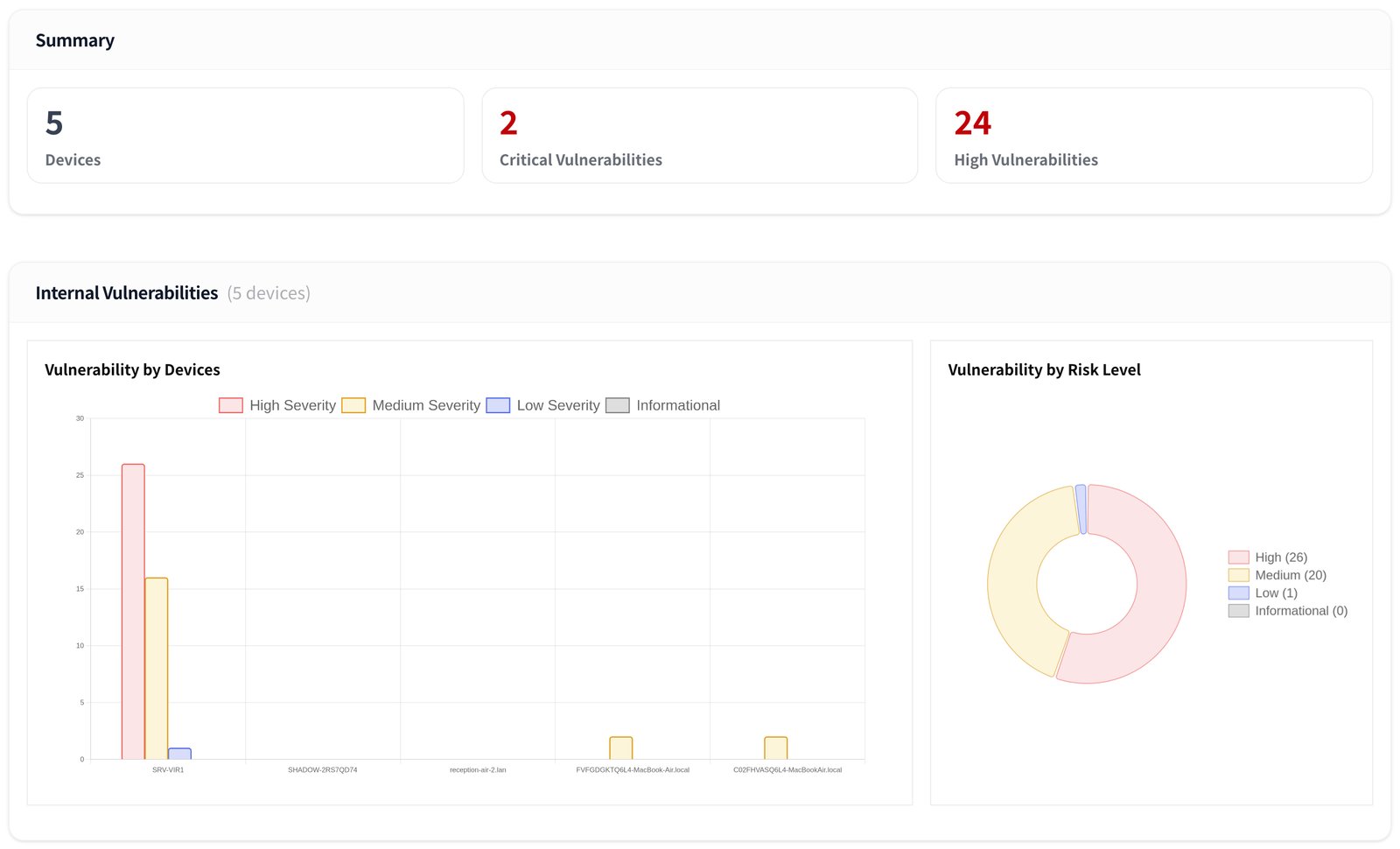
Trends
Trends plots the number of critical vulnerabilities across all devices for each scan over time. Use Filter Assets to limit the line to selected devices, and Select Period to choose 7 days, 30 days, 2 months, or YTD. A device name followed by an asterisk in the chart tooltip had not finished scanning when that point was recorded. The chart needs continuous monitoring. When monitoring is off, the chart is blurred and shows Enable Continuous Monitoring to view trends.Vulnerabilities by Devices
One row per scanned device, sorted by Max EPSS with the highest first.
Finished (non-admin) means the scan ran without administrator rights, so it may have missed software that only an administrator can see. See Agent vs Agentless.
Vulnerabilities by Applications
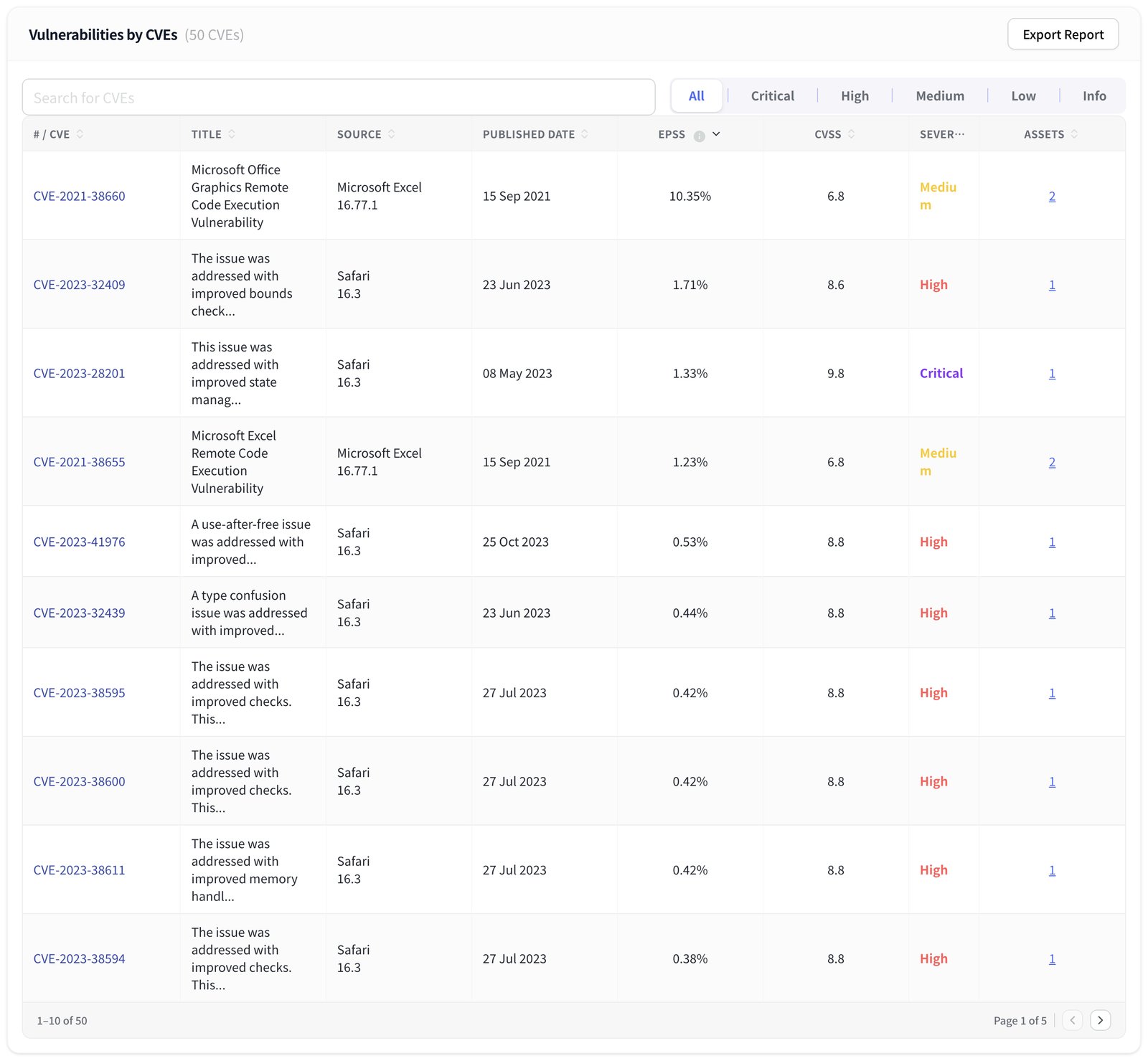
One row per installed application version that has at least one CVE, sorted by Max EPSS. The columns are Name, Version, Assets (the number of devices with that version), Max EPSS, the five severity counts, and Actions. Select the number in Assets to open Related Assets, a list of the devices that have the application. Show CVEs filters the CVE card to that application and version.Vulnerabilities by CVEs
This card lists every CVE found by the agent scan. The number next to the title is the total, and it names the device or application when you have filtered by one. Show All removes that filter. You can search with Search for CVEs and narrow the list by severity with All, Critical, High, Medium, Low, or Info.
Select a row or a CVE ID to open its details: the description, source product and version, port, score, a link to the CVE’s page on
nvd.nist.gov, and the CVE ID.
Export Report generates the Vulnerabilities Report (CSV) for the assessment and downloads it.
External Vulnerabilities
Vulnerabilities in the services Telivy found on the client’s public domains and IP addresses. The count next to the title leaves out informational findings. While the external scan is running, the title also shows (External scan ongoing). Select a finding to open its details page. To scan more domains or IP addresses, see Add Domains and IPs.Open Ports and Network Vulnerabilities
Open ports and other weaknesses in how the client’s network is exposed to the internet, such as mail services that accept unencrypted connections. Each finding opens its details page. For which ports to close and how, see Close Open Ports.IP Reputation
Whether the client’s domain and addresses appear on threat and reputation lists, such as Spamhaus and Google Web Risk. A listed address can cause the client’s email to be rejected or its website to be flagged in browsers. When a card has nothing to report, it shows No findings detected.The Threats & Vulns view
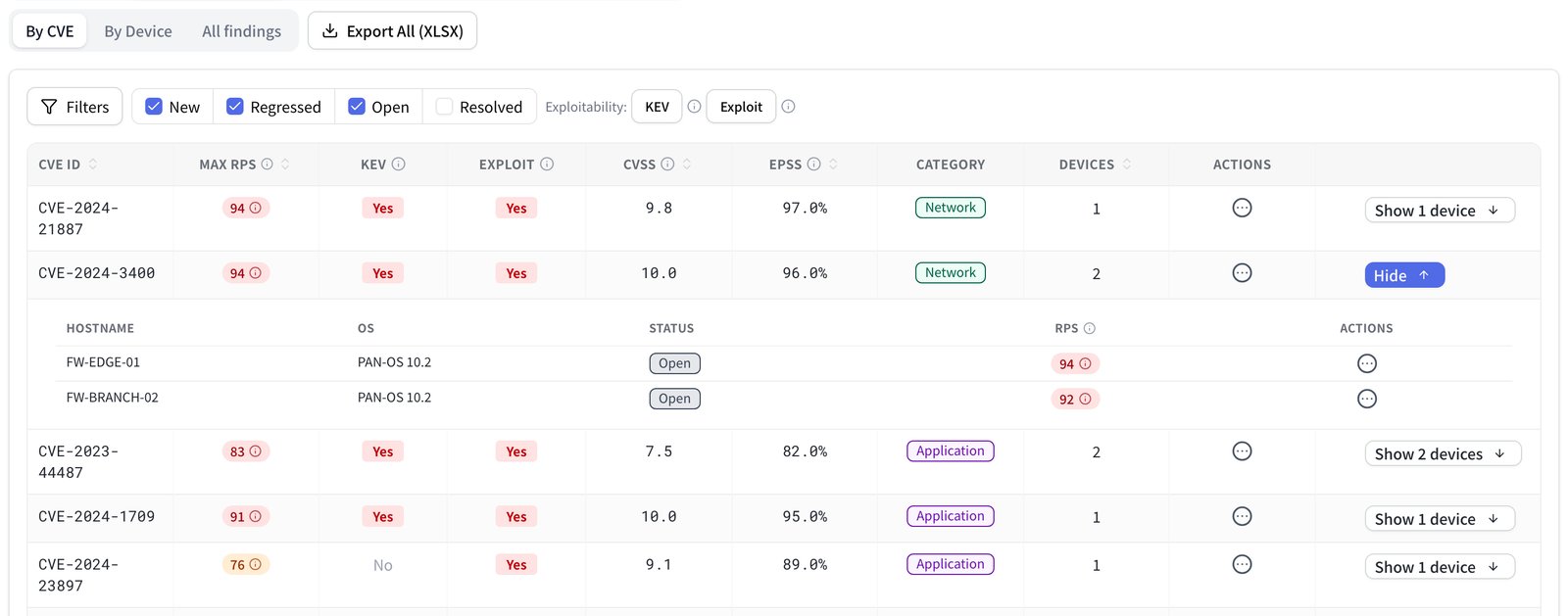
Select Threats & Vulns on the Security tab. It appears only on assessments that have an agent scan. It presents the agent’s CVE findings as one table with three tabs, ranked by Risk Priority Score (RPS) so the finding to fix first is at the top.Tabs
- By CVE has one row per CVE. The columns are CVE ID, Max RPS, KEV, Exploit, CVSS, EPSS, Category, and the number of affected devices. KEV reads Yes when CISA lists the CVE as exploited in real attacks, and Exploit reads Yes when public exploit code exists. Select Show N devices on a row to list each affected device with its finding Status and its own RPS. Select a CVE ID to open the finding.
- By Device has one row per device. The columns are Hostname, OS, Total CVEs, Max RPS, Max CVSS, Max EPSS, Asset Criticality, and PII Exposure. Select Show N CVEs to list the device’s CVEs with CVSS, EPSS, Severity, Patch status, RPS, Status, and Product. When the findings are for domains or other assets, the tab is named By Domain or By Asset and leaves out the device-only columns.
- All findings lists every finding in the group with its full details.
Filters
On the By CVE and By Device tabs:- Filters opens a panel with Device (or Domain or Asset), CVE, Severity, and a text Search.
- The status filter shows New, Regressed, and Open findings by default. Add Resolved to include fixed findings.
- Exploitability has two toggles on the By CVE tab only. KEV keeps CVEs on the CISA KEV list, and Exploit keeps CVEs with public exploit code.
- Clear filters appears once any filter is set and resets them all.
Acting on findings
Each row has an actions menu with Accept/Resolve, which records a risk decision for every finding in that row. See Risk Register. If the company is connected to a PSA, the tables also show a PSA Sync column. You can sync a single finding with Sync now in its actions menu, or select rows and use Sync to with your PSA’s name to open tickets for all unsynced findings in them. See PSA grouped tickets.Export All (XLSX)
Export All (XLSX) downloads a workbook named after the company and the date, for exampleAcme-vulnerabilities-2026-11-17.xlsx. It covers every CVE finding in the assessment and ignores the filters set on screen. The workbook has four sheets:
The By Patch sheet is sorted by Score, so the update that removes the most risk is first. Patch status is not included in the export.
Related guides
Risk Scoring
How the Risk Priority Score ranks each CVE and device.
Vulnerability Data Sources
Where CVE, CVSS, EPSS, KEV, and exploit data come from.
Close Open Ports
Which open ports to close and how.
Risk Register
Accept or resolve findings and track the decisions.