

Company
Company has two views. Details shows the Company Details card with Company Name, Company Domain, Status, Category, and Anti Virus. Edit Company opens the company’s settings, and View All Assessments opens the list of the company’s assessments. Questionnaire shows the assessment questionnaire for the company.Network
Network has three views. The count on the Network label adds the devices found on the local network to the domains and IP addresses in scope.Security Graph
Security Graph draws the local network as one diagram per router, with each device connected to its gateway. Devices running the Telivy agent are marked Telivy Deployed, routers are marked Router, and everything else is Other Devices. Select a router’s header to expand or collapse its diagram, scroll to zoom, and drag to pan. Select Router limits the view to one router. When there are many routers, the diagrams are split into pages.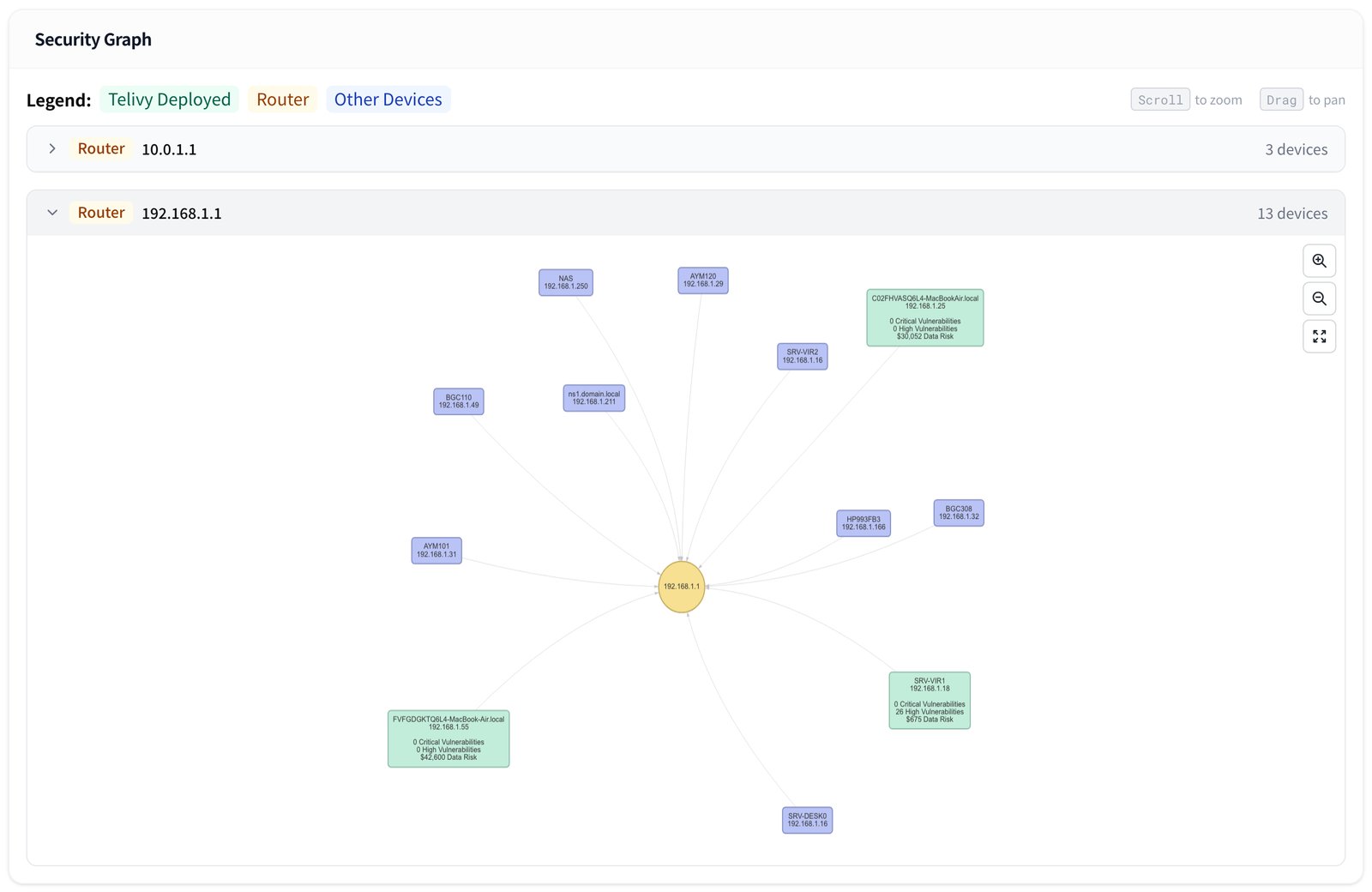
Devices
Devices lists every host the agent found when it scanned the client’s local network, including printers, phones, and other devices that cannot run the agent. Search by hostname or IP address, or use the filters for Router, Gateway Status, and Deployment Status (Deployed or Not Deployed).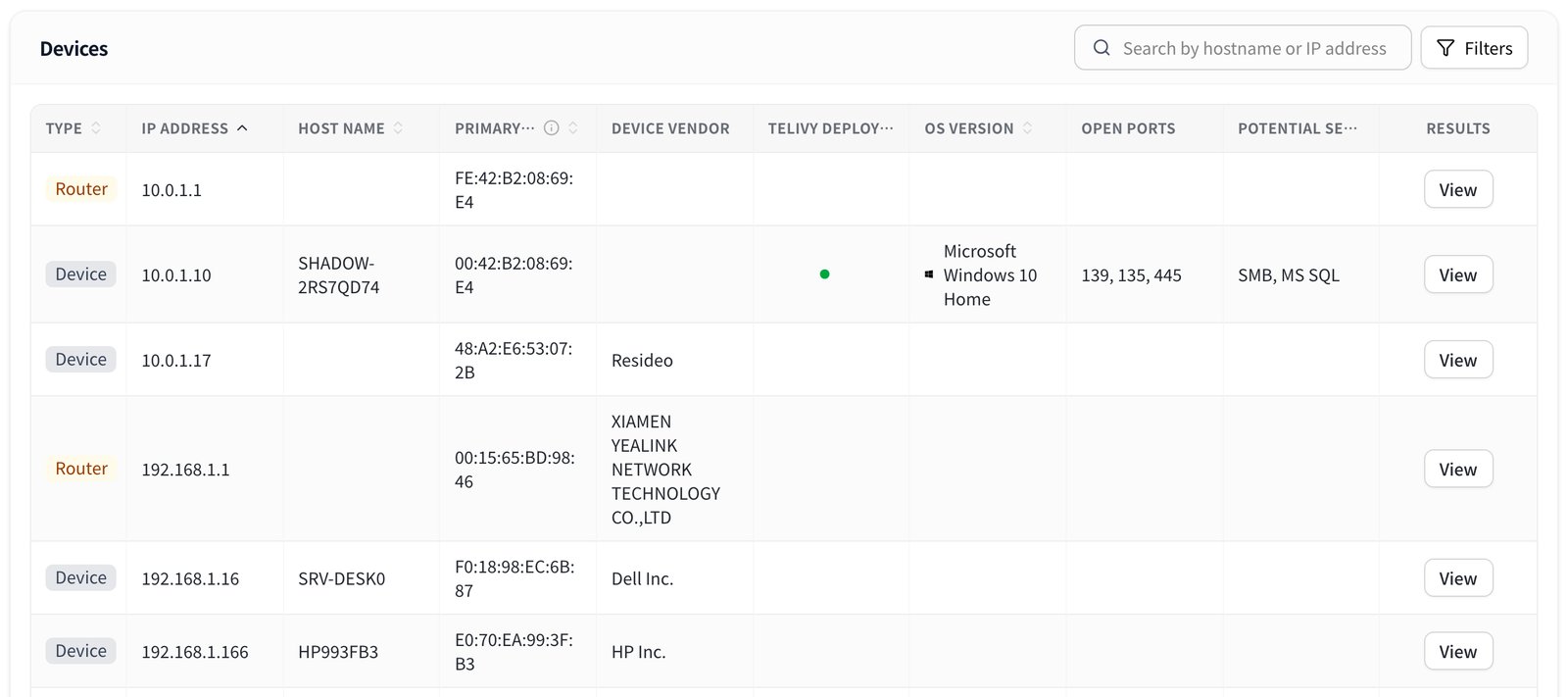
Domains and IP Addresses
Domains and IP Addresses lists the domains, subdomains, and public IP addresses included in the external scan, leaving out any you have excluded. To add or exclude targets, see Add Domains and IPs.Web Activity
Web Activity shows the websites visited from company devices. Websites lists each site once with its category, whether it is an AI tool, its risk rating, and its users, and Activity lists every visit by user and device. See Web activity and AI use for the columns and what the AI classification means.Installed Apps
Installed Applications lists every application version installed on devices with the agent, one row per name and version. Search with Search installed applications.
To see the CVEs themselves for one application, use Show CVEs under Security > Network > Vulnerabilities by Applications. See Network Security.
Data
Data shows the Data Risk Distribution table, with one row per PII type found on the client’s devices: PII Type, the Risk per match and Total PII Risk in the assessment’s currency, Total PII Matches, and Sensitive Files. Details opens the breakdown for that PII type. For how PII is detected, how the dollar risk is set, and how to mask matched values, see Data Security.Endpoints
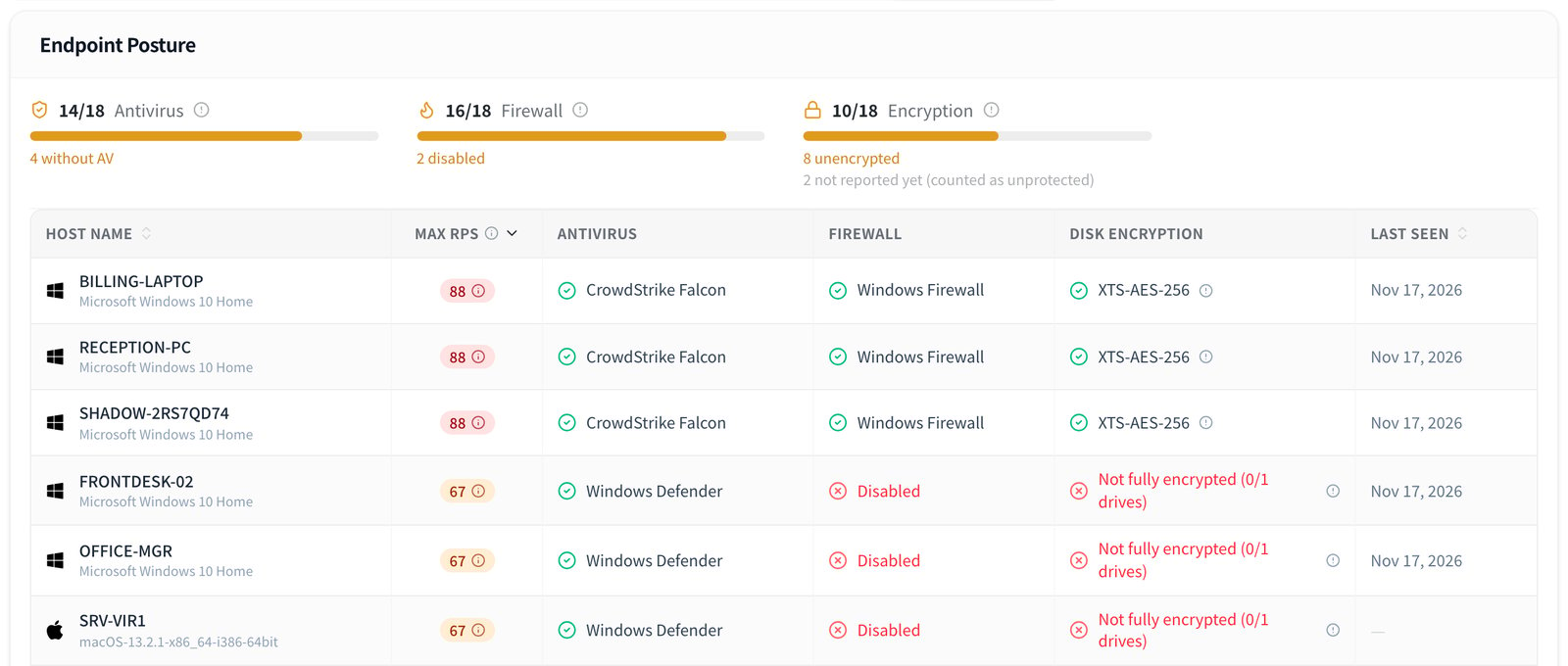
Endpoints shows the Endpoint Posture card: whether antivirus, the firewall, and disk encryption are in place on each device with the agent.Summary
A strip at the top shows how many endpoints pass each check, as a count and a bar:- Antivirus: endpoints with antivirus installed and turned on. Otherwise it shows how many are without AV.
- Firewall: endpoints with the built-in firewall turned on.
- Encryption: endpoints where every drive is encrypted. An endpoint with one unencrypted drive counts as unencrypted.
- Remediator: Windows devices running the Telivy Remediator, which applies the fixes you approve. This item and the matching column appear only when the Remediator is enabled for your agency.
Columns
The table is sorted by Max RPS, with the riskiest endpoint first. Endpoints without a score stay at the bottom.
A cell reads Not reported yet when the agent has not sent that check. An information icon next to an antivirus or firewall entry means the endpoint only reports that the product is registered with the operating system, so Telivy cannot confirm it is running.
The Endpoints table has no row actions. To set a device’s criticality, which feeds into its RPS, use Setup > Deploy Agent > Deployment Status; see Setting asset criticality. To check whether each agent is on the current version, see Auto-update. For more on encryption findings, see Disk Encryption Detection.
Related guides
Network Security
Internal and external vulnerabilities on the Security tab.
Data Security
PII detection, dollar risk, and masking.
Risk Scoring
How the Risk Score and Risk Priority Score are calculated.
Add Domains and IPs
Add or exclude targets for the external scan.