

- The applications installed on each device, listed under Inventory > Installed Apps.
- The websites people visit from company devices, including AI tools and sites that need review. See Web activity and AI use below.
- PII stored on devices, such as SSNs, card numbers, and health IDs, with a dollar value for the exposure. See Data Security.
- Passwords saved in browsers, checked for breaches, weakness, and reuse. See Identity and Access Management.
- Leaked credentials and personal details tied to the client’s domains on the dark web, such as usernames, passwords, IP addresses, emails, physical addresses, and phone numbers.
- Accounts, MFA, sign-ins, Secure Score gaps, and tenant policies from Microsoft 365 and Google Workspace.
- A mapping of findings to the CIS Critical Security Controls on the Compliance tab.
Web activity and AI use
The agent records which websites are visited from each device. Find them on the assessment’s Inventory tab under Web Activity, which has two views:- Websites lists each site once, with its Category, whether it is an AI tool, Total Visits, a Risk rating, and the number of Users. The summary above it shows Total Websites Found and High Risk Websites. Expand a row to see why the site got its rating, its characteristics (for example “Generative AI”, “Handles health data”, or “File sharing”), and which users and devices visited it.
- Activity lists every visit by website, user, and device with the last visit date. Filter it by device, user, category, or website. Selecting a site in the Websites view opens its activity.
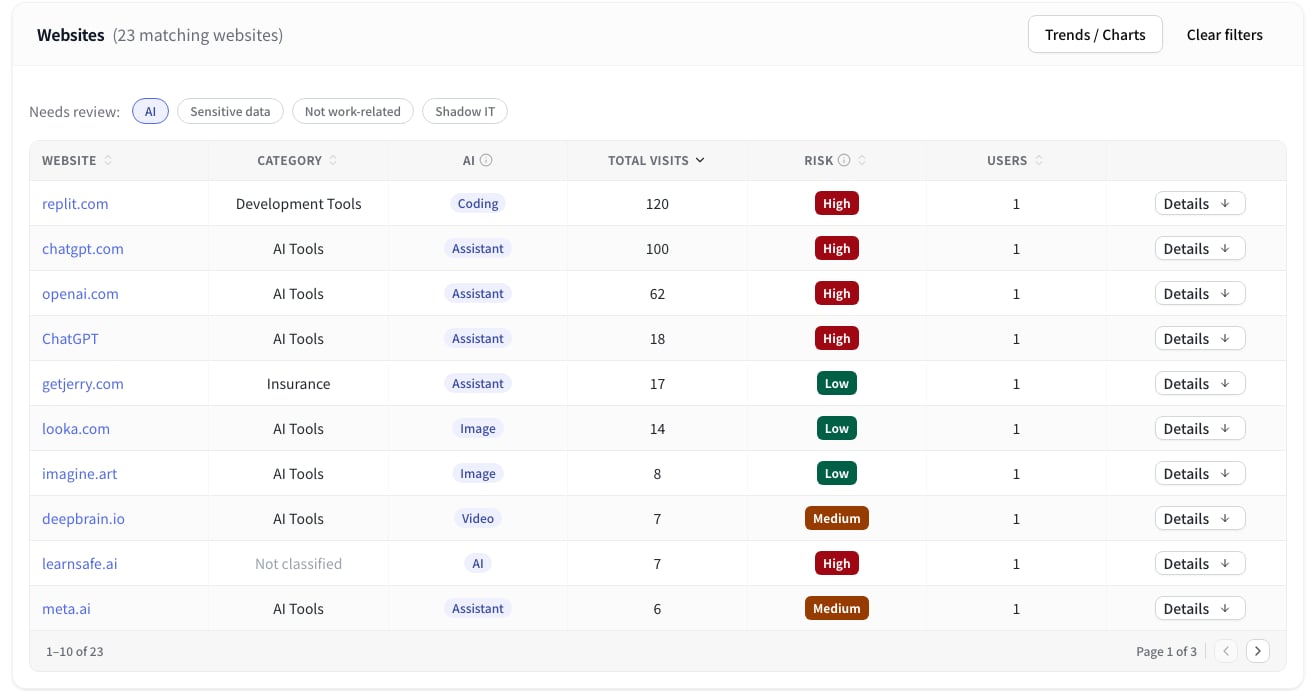
On the Overview tab, the AI Exposure Score card summarizes AI use with Total AI Websites, Unique AI Users, and the top AI sites. View all websites opens the Web Activity tab. AI scoring explains how the score is calculated.