

Set up your account
Add your agency logo and invite teammates. Only account admins can open the Account
area. Multi-factor authentication is on for every Telivy email and password login, so each user
registers an authenticator app the first time they log in. If your agency signs in through
Unity, users choose Sign in with Cytracom and use Unity’s sign-in instead. See Unity and Cytracom.Account settings overview ·
Multi-factor authentication
Run an External Assessment
Select Create Assessment, pick or create the company, choose External Scan, and
enter a domain if the company has none on record. Nothing is installed, and the scan usually finishes in about ten minutes. It is
the quickest way to show a prospect their public exposure.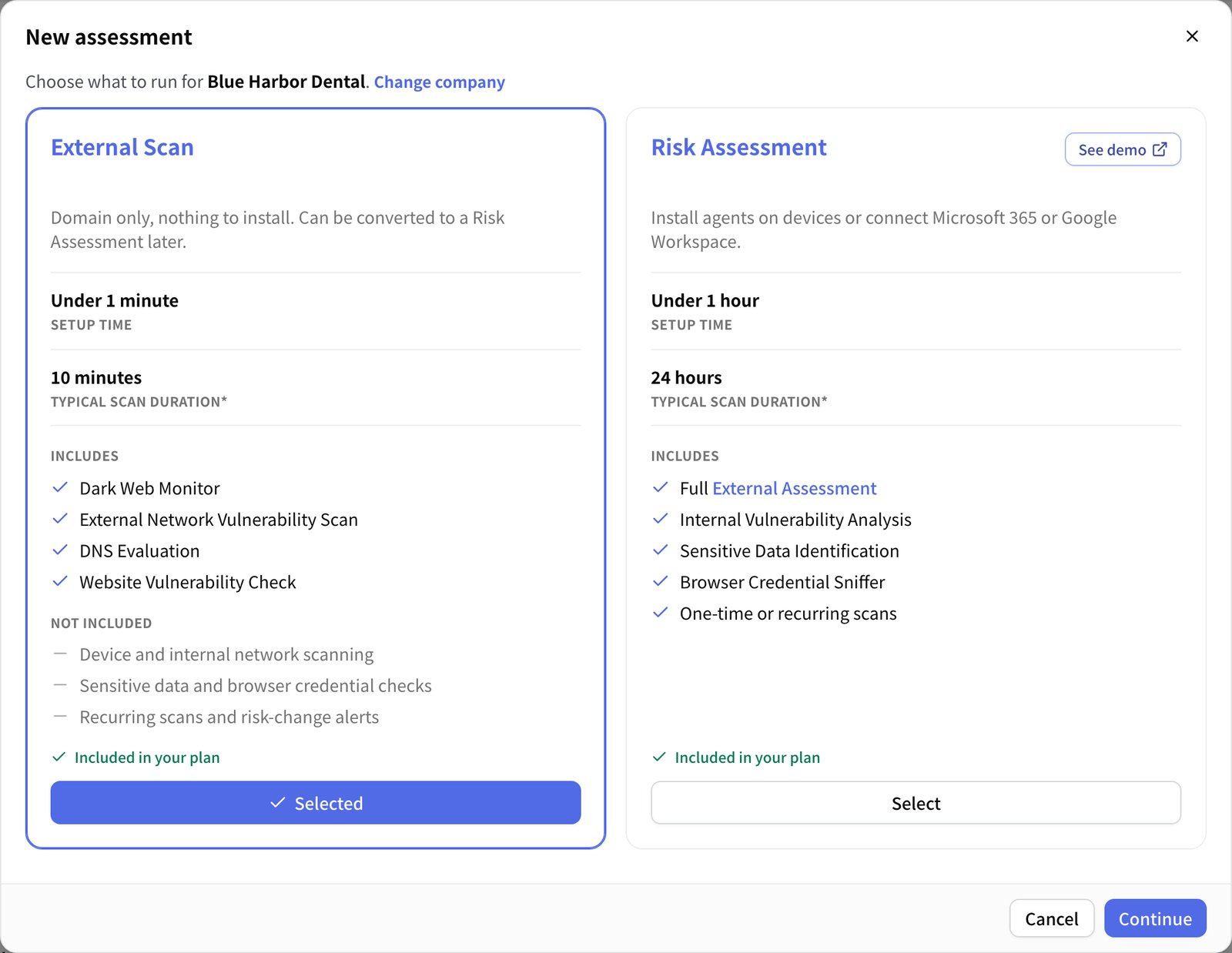
Start a Risk Assessment for a client
A Risk Assessment adds internal vulnerabilities, sensitive data on devices, saved
browser passwords, and Microsoft 365 or Google Workspace. Setup takes under an hour, and
the scan usually finishes about 24 hours after the agents are deployed.Start a Risk Assessment
Deploy the Telivy agent
Allow Telivy in the client’s antivirus or EDR first, then run the install command from
your RMM or the installer on each Windows PC or Mac. Use the agentless scanner when you
cannot install software.Agent vs Agentless ·
Allow in AV and EDR ·
Allow in ThreatLocker ·
Install on Windows ·
Install on macOS
Review the findings and the score
Open the assessment to see the Risk Score, vulnerabilities ranked by Risk Priority Score,
and the letter grade for each report section.Navigating an assessment ·
Risk Score ·
Report grading criteria ·
Risk Register
Share a report with the client
On the assessment’s Reports tab, select Generate New Report and pick a report
type.Generate reports
Keep the client monitored
Turn on Continuous Monitoring to rescan on a schedule, and set up alerts for new
breaches and critical vulnerabilities between rescans. Connect your PSA so findings
become tickets.Risk Monitoring ·
Alerts ·
Integrations
Stuck on an install? The installation and troubleshooting FAQ
covers the common problems, and Get Help lists how to reach the Telivy
team.